WordPress White Screen of Death: 5 Causes & Easy Fixes
Table of Contents
ToggleIntroduction
Picture this: you start your day energized, coffee in hand, ready to work on your WordPress website. You type in your site’s URL, hit Enter… and suddenly – nothing.
No header.
No content.
No error message.
Just a cold, empty white screen staring back at you.
That sinking feeling? You’re not alone.
This terrifying issue is known as the WordPress White Screen of Death, often called WSoD and it’s one of the most frustrating problems website owners and developers can face. What makes it even worse is that WordPress often gives you zero clues about what went wrong. The WordPress White Screen of Death usually appears when a critical error prevents WordPress from loading properly.
To make matters more confusing, this error doesn’t always affect your entire site. Sometimes the homepage works fine, but the admin dashboard won’t load. Other times, only a single post or page disappears into the void.
Annoying? Absolutely.
Fixable? Thankfully, yes.
The key is understanding why it’s happening. Once you know the cause, the solution becomes much easier. Let’s break it down step by step and bring your website back to life. If your issue is specifically related to the dashboard, you might also want to check our complete guide on WordPress admin not loading and how to fix it.
Why Is Your WordPress Site Showing a White Screen?
The White Screen of Death doesn’t happen randomly. Behind the scenes, something is conflicting, breaking, or running out of resources. Think of it like a system overload – one small issue can bring everything to a halt.
Here are the most common causes of the White Screen of Death in WordPress:
1. Plugin Conflicts
Plugins are incredibly useful, but they can also be the biggest troublemakers.
Imagine two plugins trying to do the same job in different ways – or an outdated plugin attempting to work with a newer WordPress version. When plugins clash, WordPress may completely stop loading, resulting in a blank screen.
Plugin conflicts are the most common reason behind the WordPress White Screen of Death, especially after installing new plugins.
Pro Tip!
2. Theme Issues
Your theme controls how your website looks and displays content. If the theme contains faulty code, a broken update, or compatibility issues, WordPress may fail to render anything at all.
It’s like building a house on a weak foundation – if the base collapses, everything above it disappears.
3. PHP Memory Limit Exhausted
Every WordPress site has a limited amount of PHP memory available. If your site tries to use more memory than allowed – due to heavy plugins, large traffic spikes, or complex scripts – it may simply shut down mid-process.
When that happens, WordPress stops loading and shows nothing but a white screen.
4. Corrupted WordPress Files
Sometimes, core WordPress files become damaged. This can happen during server migrations, incomplete uploads, hacking attempts, or interrupted updates.
If WordPress can’t properly read its own files, it won’t know how to display your site – so it shows White Screen of Death.
5. Incomplete or Interrupted Updates
We’ve all been there – an update starts, the internet disconnects, or the browser closes unexpectedly.
This leaves your website stuck between two versions: not fully updated, but not fully functional either. This “half-finished” state is a common trigger for the White Screen of Death.
How to Fix the WordPress White Screen of Death (Step by Step)?
1. Find and Fix Plugin Conflicts
Start by thinking about your recent actions.
Did the error appear right after installing or activating a plugin? If so, that plugin is likely the culprit.
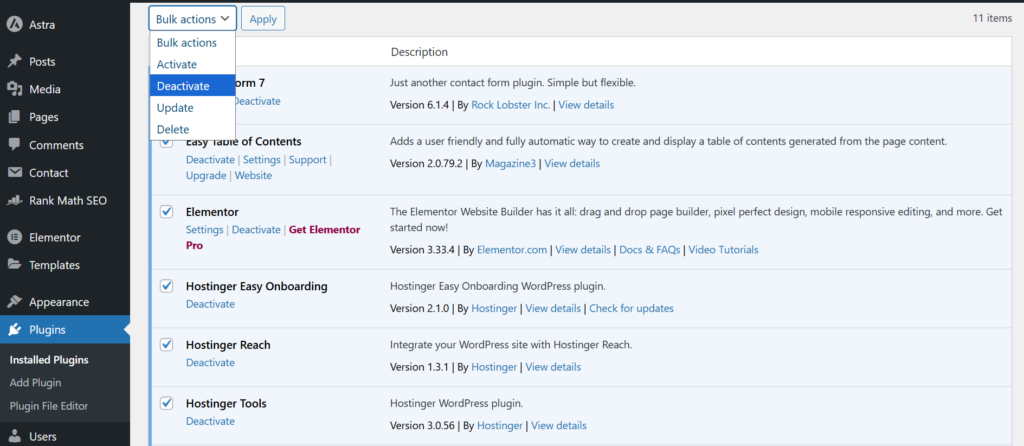
How to Disable Plugins
Option 1: From the WordPress Dashboard
If you can still access the admin panel:
- Go to Plugins
- Deactivate the most recently added plugin
- Refresh your website
Option 2: Via FTP or Hosting File Manager
If you can’t access the dashboard:
- Open your site files using FTP or your hosting control panel
- Navigate to wp-content/plugins
- Rename the folder of the suspected plugin (this automatically disables it)
Not Sure Which Plugin Is the Problem?
Deactivate all plugins at once. If your site loads again, you’ve confirmed a plugin conflict.
Then, reactivate plugins one by one, refreshing your site after each activation. When the white screen returns, you’ve found the problem plugin.
2. Switch to a Default WordPress Theme
If plugins aren’t the issue, your theme might be.
How to Test Your Theme
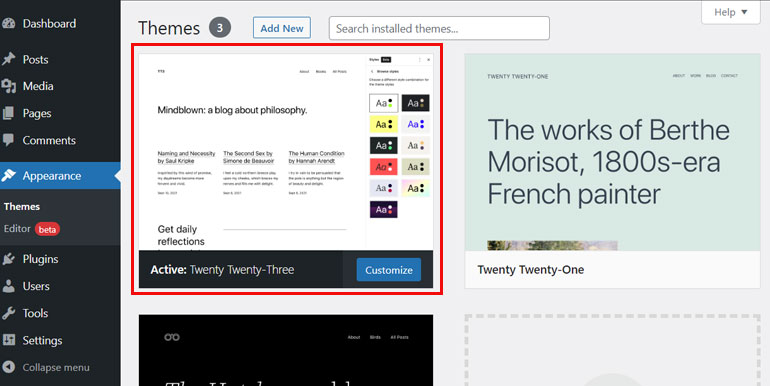
- Go to Appearance → Themes (if you can access the dashboard)
- Activate a default theme like Twenty Twenty-Two or Twenty Twenty-Three
- Reload your website
If your site works again, your theme is causing the issue.
What to Do Next
- Update the theme if an update is available
- Contact the theme developer for support
- Switch to a different, well-maintained theme if the issue persists
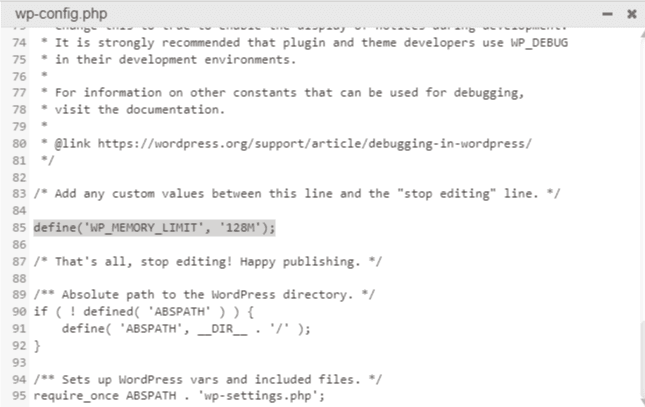
3. Increase the PHP Memory Limit
If your site runs out of memory, WordPress may crash silently.
You can increase the memory limit by editing your wp-config.php file or using a snippet plugin like WPCode.
Increasing the memory allows WordPress to complete processes that were previously failing.
Check our latest guide on how to increase PHP memory limit.
4. Clear Your WordPress Cache
Sometimes the backend works perfectly, but the frontend still shows a white screen. This is often caused by cached files.
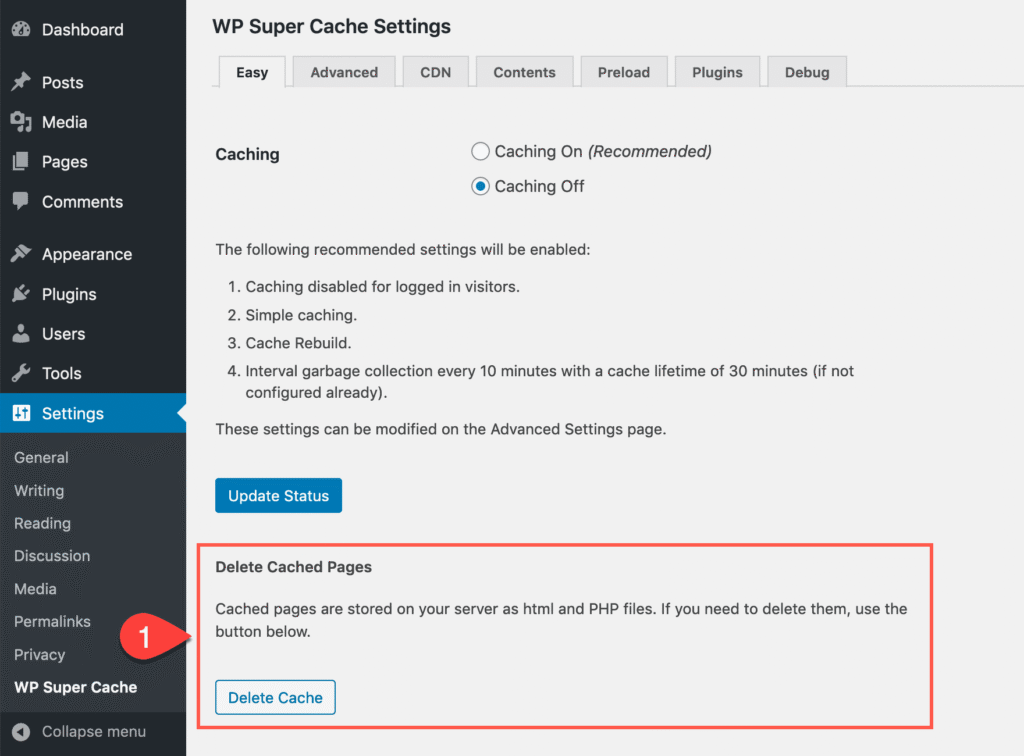
If you’re using a caching plugin:
- Log in to your dashboard
- Clear or purge the cache
- Refresh your website
This simple step can instantly fix the issue in many cases.
5. Enable Debug Mode to Reveal Errors
If none of the above solutions work, it’s time to let WordPress tell you what’s wrong.
How to Enable Debugging
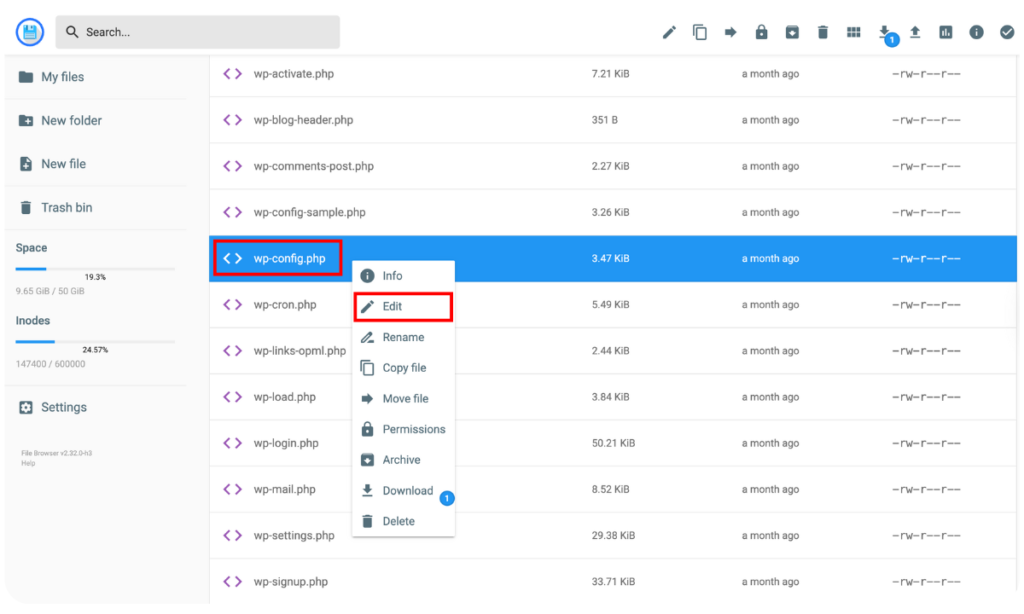
Open your wp-config.php file and add these lines:
define( 'WP_DEBUG', true );
define( ‘WP_DEBUG_LOG’, true );
Once enabled, WordPress will start displaying error messages, warnings, or notices instead of a blank screen.
No Errors Showing?
Don’t worry — WordPress still logs them.
- Access your site using FTP
- Open the wp-content folder
- Look for a file called debug.log
This file contains detailed error information that can point directly to the source of the problem.
Pro Tip!
Final Thoughts
The WordPress White Screen of Death can be terrifying, but it’s rarely permanent. In most cases, the issue comes down to a plugin conflict, theme error, memory limitation, or corrupted file.
By following the steps above – calmly and methodically – you can identify the cause and restore your website without panic.
And remember: regular backups, updates, and reliable plugins can help prevent this nightmare from happening again.
If the issue is still unresolved, feel free to contact us and we’ll provide personal assistance.
Related WordPress Issues (Recommended Reading)
If you’re facing multiple errors, these guides will help:
- How to Fix WordPress 404 Error?
- How to Fix WordPress 500 Internal Server Error
- WordPress Site Stuck in Maintenance Mode? Here’s the Fix
- WordPress not sending emails? Check this out]
- How to Fix WordPress Login Redirect Loop (wp‑admin Keeps Refreshing)
These articles cover the main related wordpress errors and scenarios.