WordPress Site Stuck in Maintenance Mode? Here’s the Fix (Step‑by‑Step)
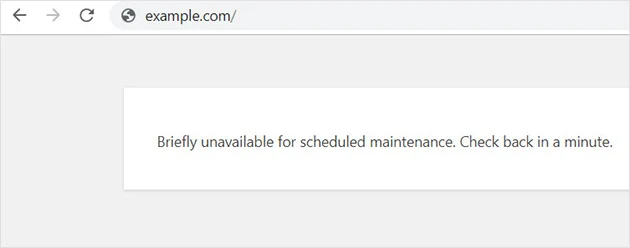
Table of Contents
ToggleIntroduction
You open your website expecting everything to work normally…
But instead, you see this message:
“Briefly unavailable for scheduled maintenance. Check back in a minute.”
Minutes pass.
Hours pass.
The message doesn’t go away.
If you’re facing an issue of WordPress site stuck in maintenance mode, you’re facing a common but stressful problem – especially if you’re a beginner or just launched your website.
The good news?
This issue is easy to fix, even if you don’t have technical knowledge.
In this guide, you’ll learn:
Why WordPress gets stuck in maintenance mode
The safest ways to remove it
How to prevent it from happening again
Let’s fix your site step by step.
Note: If instead of maintenance mode, you’re seeing a blank page with ‘404 Error’, make sure to read this guide.
What Is WordPress Maintenance Mode?
WordPress automatically enables maintenance mode when you update:
WordPress core
Plugins
Themes
During updates, WordPress creates a temporary file that tells visitors:
“The site is temporarily unavailable.”
Once the update finishes successfully, WordPress removes that file and your site returns to normal.
However, when something goes wrong, WordPress fails to exit maintenance mode, leaving your site stuck.
Why Is Your WordPress Site Stuck in Maintenance Mode?
Maintenance mode doesn’t get stuck randomly. There’s always a reason behind it.
Here are the most common causes:
1. Interrupted Updates
If your internet disconnects, browser crashes, or hosting times out during an update, WordPress may not complete the process.
This leaves your site in a “half‑updated” state.
Pro Tip!
If you’re facing ‘WordPress admin not loading’ issue, check our latest guide here.
2. Updating Too Many Plugins at Once
Updating multiple plugins or themes simultaneously increases the risk of errors – especially on shared hosting.
When one update fails, WordPress never exits maintenance mode.
3. Low Server Resources
Limited PHP memory or CPU resources can stop updates mid‑process.
This is very common on new or low‑cost hosting plans.
4. Plugin or Theme Conflicts
A poorly coded or outdated plugin can break the update process and lock your site.
Note: If you’re not seeing any message like ‘Briefly unavailable for scheduled maintenance’, make sure the issue is not related to White screen of death.
How to Fix WordPress Stuck in Maintenance Mode (Step‑by‑Step)
Let’s move to the solutions – starting from the easiest.
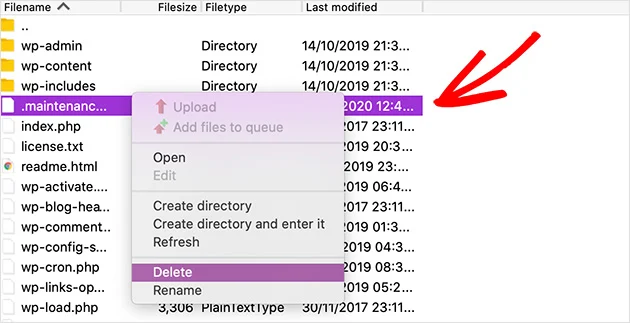
Method 1: Delete the .maintenance File (Fastest Fix)
This solves the issue in 90% of cases.
Steps:
Log in to your hosting control panel
Open File Manager (or use FTP like FileZilla)
Go to your website’s root directory
Usually
public_htmlor/www
Look for a file named:
.maintenanceDelete the file
Refresh your website
Your site should be live again immediately.
Method 2: Clear Browser & WordPress Cache
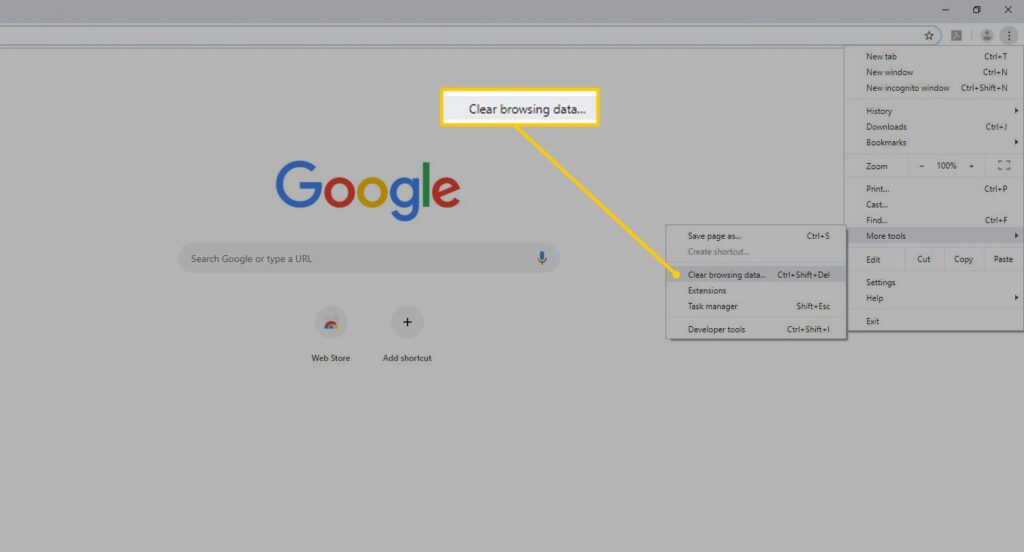
Sometimes the maintenance message remains because of cached files.
What to do:
Clear your browser cache
If you use a caching plugin, clear WordPress cache
Refresh the page in an incognito window
This step is simple but surprisingly effective.
Method 3: Check If Updates Finished Properly
If maintenance mode returns again, an update may still be incomplete.
Steps:
Log in to your WordPress dashboard (if accessible)
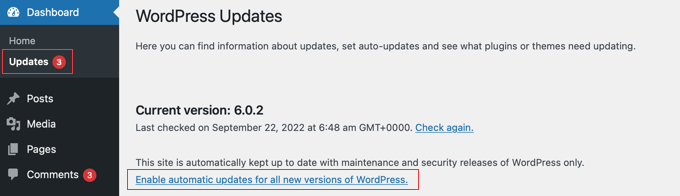
Go to Dashboard → Updates
Finish or re‑run pending updates
Update one plugin at a time
If the dashboard is not loading, check our guide on WordPress admin not loading before continuing.
Method 4: Disable All Plugins (If Issue Persists)
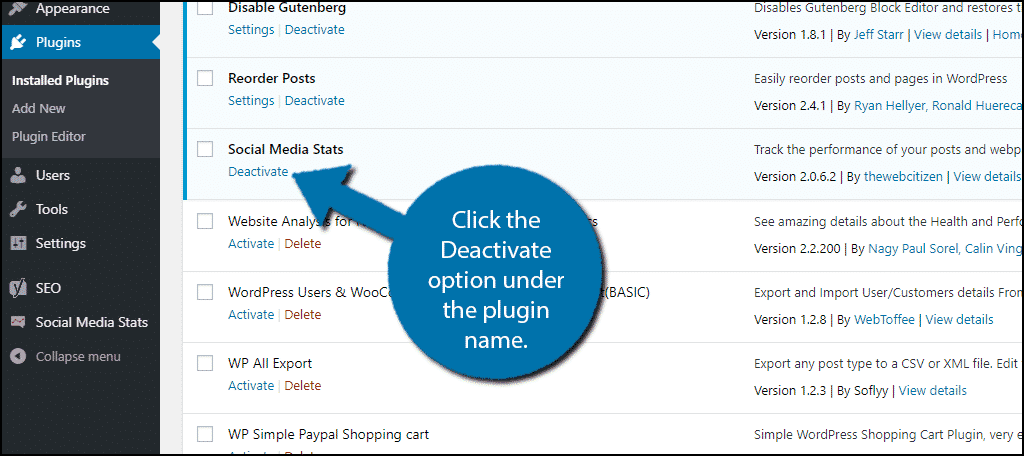
If deleting the .maintenance file didn’t work, a plugin is likely the cause.
How to disable plugins:
Open File Manager or FTP
Go to:
wp-content/pluginsRename the folder to:
plugins-disabledRefresh your website
If the site loads, plugins caused the problem.
Rename the folder back to plugins, then activate plugins one by one to find the faulty one.
Method 5: Increase PHP Memory Limit
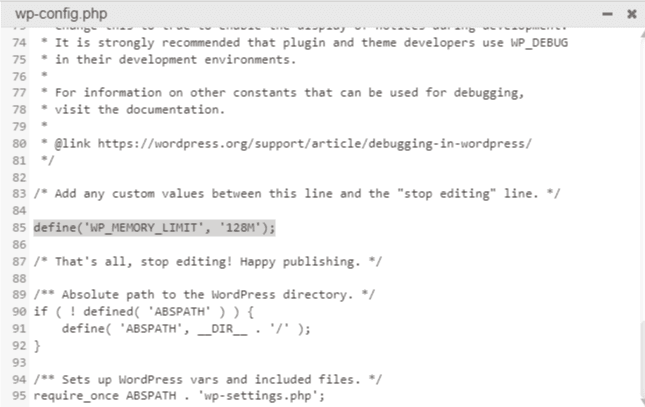
Low memory can stop updates and keep maintenance mode active.
Add this to wp-config.php:
define('WP_MEMORY_LIMIT', '256M');If this doesn’t work, contact your hosting provider and request a memory increase.
Method 6: Re‑Upload Core WordPress Files (Advanced)
If WordPress core files are corrupted, reinstalling them can help.
Important:
Do NOT overwrite
wp-contentOnly replace:
/wp-admin/wp-includes
Download fresh WordPress files from WordPress.org and upload them via FTP.
How to Prevent WordPress Maintenance Mode in the Future
Once fixed, take these precautions:
Update One Plugin at a Time
Avoid bulk updates, especially on shared hosting.
Always Backup Before Updates
Use a backup plugin or hosting backup feature.
Avoid Updating During High Traffic
Updates consume server resources – do them during low‑traffic hours.
Use Trusted Plugins & Themes
Poorly coded plugins are a major cause of WordPress issues.
FAQs: WordPress Maintenance Mode
How long should maintenance mode last?
Normally a few seconds to a minute. Anything longer means there’s an issue.
Is maintenance mode dangerous?
No – but staying stuck can affect SEO, user trust, and sales.
Can maintenance mode affect Google rankings?
Yes, if your site stays unavailable for hours or days, Google may reduce crawling.
Will deleting the .maintenance file harm my site?
No. It’s completely safe and recommended.
Final Thoughts
A WordPress site stuck in maintenance mode can feel scary, especially when your website is new.
But in reality:
It’s a common issue
It’s rarely serious
And it’s almost always fixable
By following the steps above, you can restore your website quickly and safely — without losing data or rankings.
If you’re still facing issues or your dashboard isn’t accessible, feel free to contact us for personal assistance.