WordPress Admin Not Loading? 7 Fixes to Save Your Site!
Introduction
The workload is heavy, and on top of that, you log into WordPress only to find the dashboard completely ruined! The entire look has changed? WordPress admin not loading? Should the focus be on website development or fixing these issues? We certainly understand the frustration.
Immediately, the concern that your entire website has disappeared might start to overwhelm you… What has happened? Do not worry – nothing major has occurred. This is likely just a small CSS issue, and it will be resolved quickly, often within two minutes.
First, it is important to understand that your visitors are not seeing this problem. They are still seeing your excellent, functional website. The issue is confined to your administration area; everything is working, but the layout on your end has become disorganized. This styling and layout are managed by CSS, and we will guide you on how to fix it.
This is a very common error that occasionally appears and can typically be solved in just two minutes. Below are seven proven solutions to help you regain access to your WordPress admin area. If your issue is specifically related to the dashboard, you might also want to check our complete guide on WordPress white screen of death and how to fix it.
Fix 1: Delete Cookies and Browser Cache
An outdated browser cache is one of the most straightforward causes of WordPress admin not loading. It’s possible that your browser is loading outdated files that interfere with recent WordPress updates. This frequently results in missing styles or layout problems, giving the impression that WordPress CSS is not loading. How to clear browser cache?
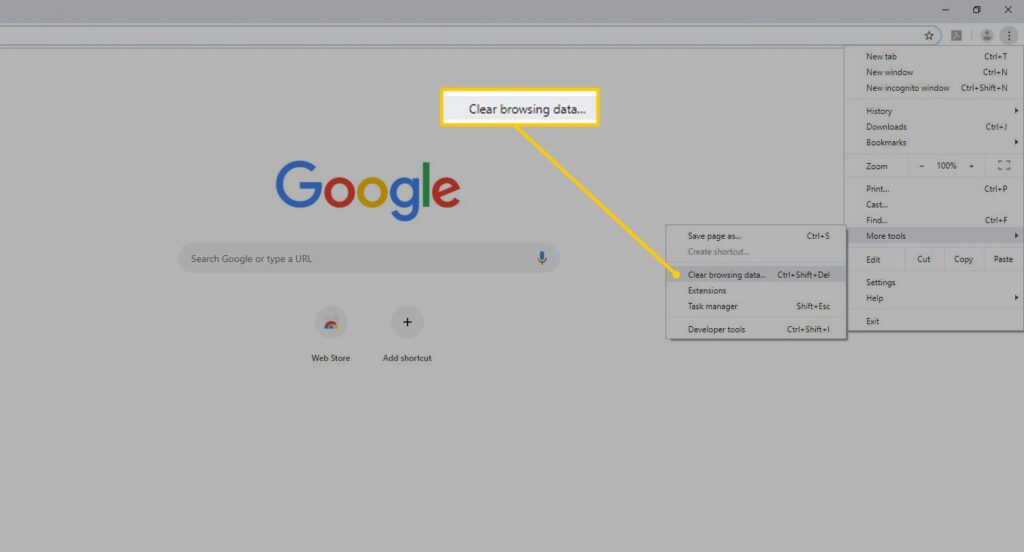
Reload the admin page after clearing the cache and cookies in your browser. To verify if the issue is browser-related, you can also access the admin panel in a private or incognito window. If the admin loads properly following this step, cached files were the source of the problem.
Fix 2: Deactivate Every WordPress Plugin
One of the main causes of WordPress admin not loading errors is plugins. The dashboard may not load completely or CSS and JavaScript files may be blocked by a poorly written or incompatible plugin.
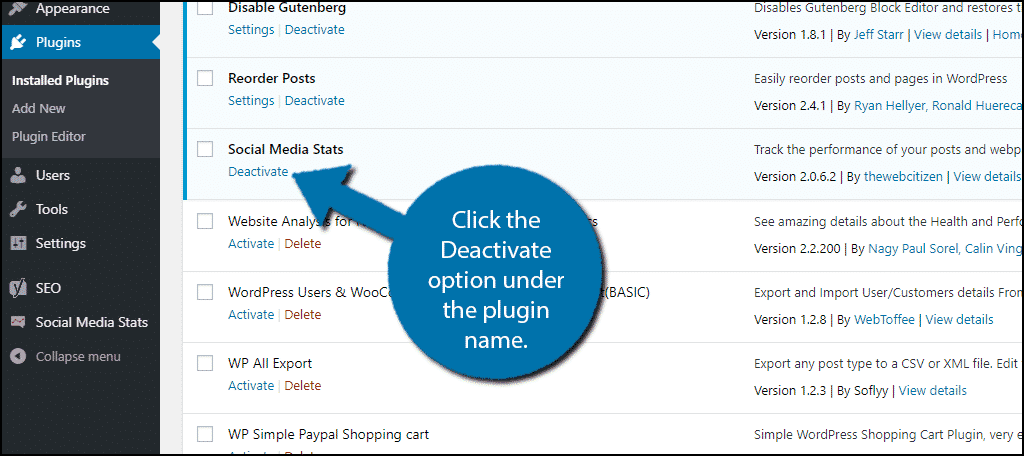
Deactivate all the plugins and then reactivate each plugin individually once the admin has begun working in order to identify the plugin that was the source of the issue. If WordPress CSS is not loading after installing a new plugin, this step is especially helpful.
Fix 3: Use the WordPress Default Theme
The WordPress admin area may also be impacted by themes. It may appear as though WordPress CSS is not loading if a broken or out-of-date theme loads incorrect files or blocks admin styles.
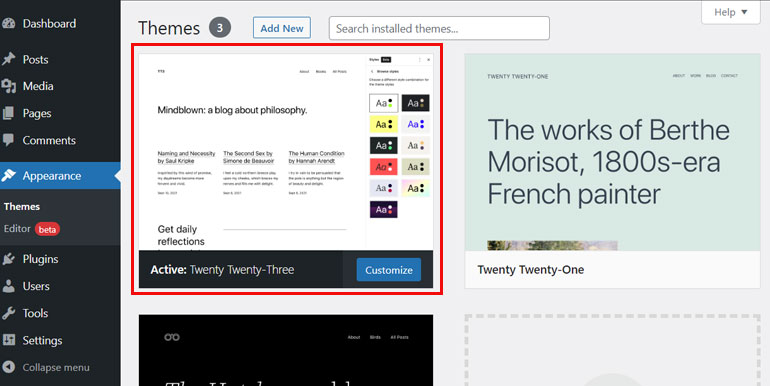
Use FTP or your hosting file manager to change your active theme to a default WordPress theme, such as Twenty Twenty-Three. Your original theme is the cause of the issue and may need to be updated or fixed if the admin loads properly after changing themes.
Note: If instead of white screen, you’re seeing ‘Maintenance mode’ message in a small dialog box, the issue is not specifically related to white screen of death but your website might be stuck in maintenance mode.
Fix 4: Increase the PHP Memory Limit
WordPress admin pages may not load correctly if PHP memory is insufficient. The dashboard may not load at all or load without CSS styling if memory runs out.
How to increase PHP memory limit in wordpress?
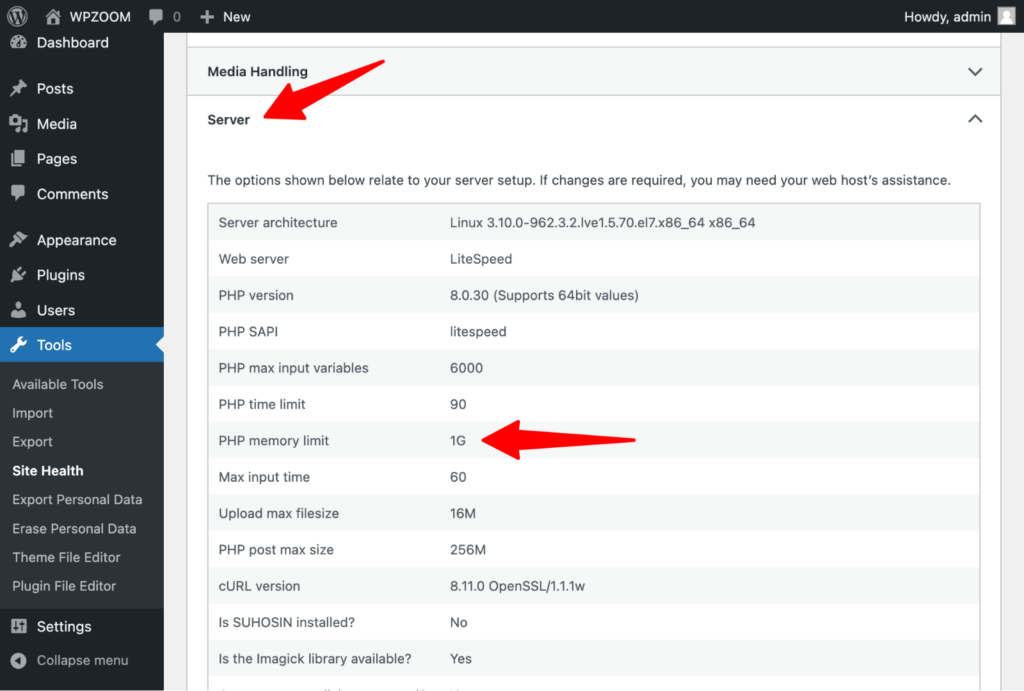
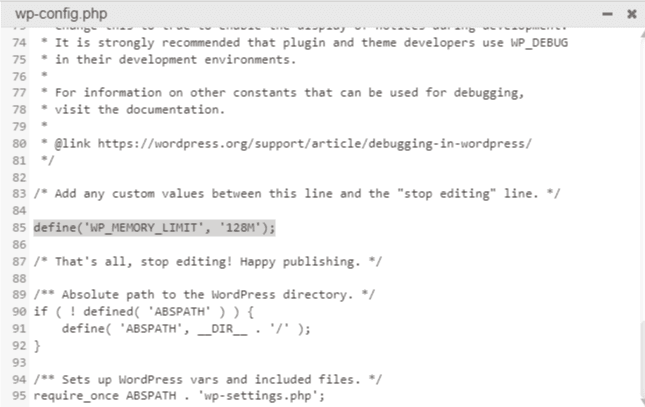
To resolve this, modify the php.ini or wp-config.php file to increase the PHP memory limit. Increasing memory makes it easier for WordPress to handle admin requests and frequently fixes problems with WordPress admin not loading that are brought on by large plugins or themes.
Fix 5: Refresh .htaccess file
The basic rules for WordPress functionality are regulated by the file “.htaccess”. Such a file might inhibit the CSS load in case of damage or incorrect settings.
Here’s what you have to do:
1. Rename your current .htaccess file to.
2. Refresh wp-admin
WordPress will now auto-create an .htaccess file.
How to refresh .htaccess file?
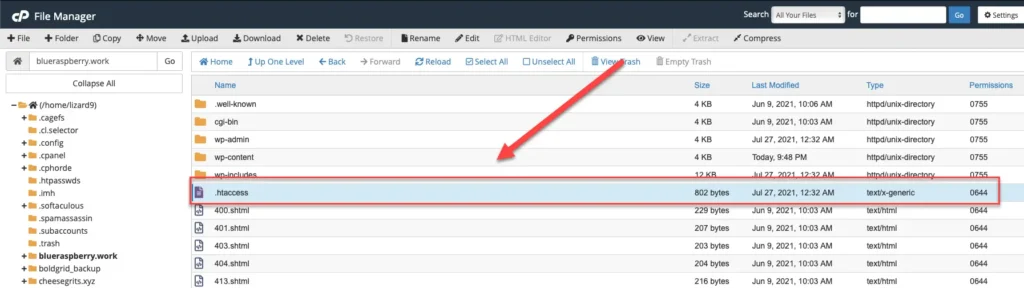
WordPress admin not loading, WordPress CSS not loading problems will easily be resolved with this procedure.
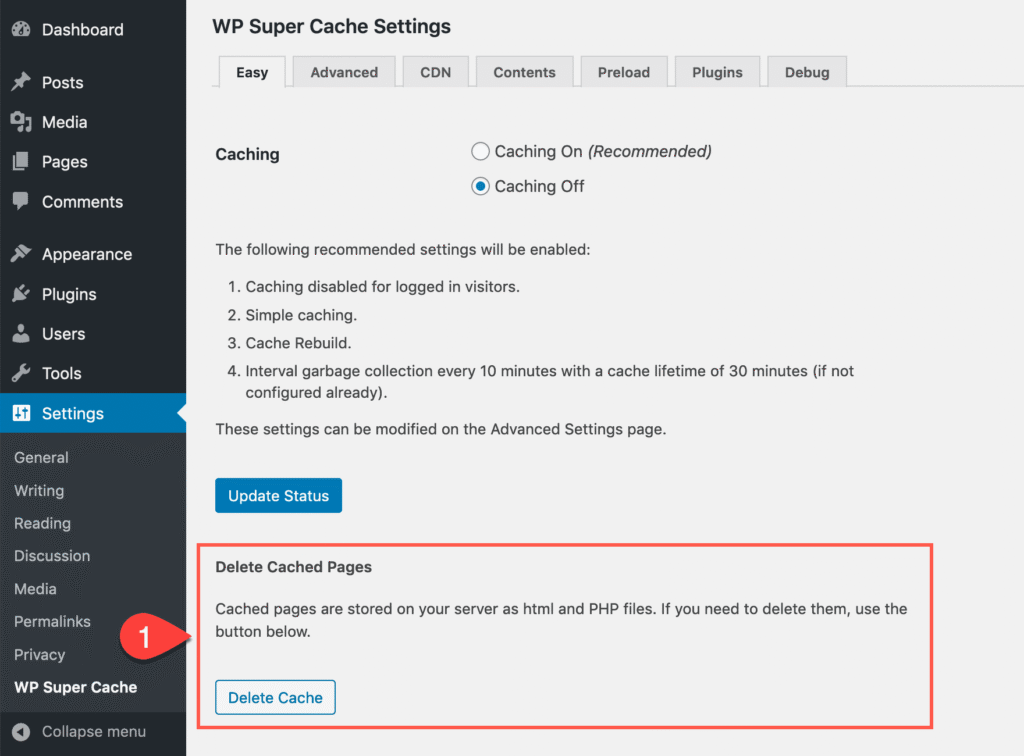
Fix 6: Clear the cache from CDNs or caching plugins
Though content deliver networks and caches are meant for improved speed, there are instances when outdated or buggy files are distributed. This can cause the WordPress admin page not to load or not load with CSS.
If you are using a CDN, make sure to remove the cache from there and from your caching plugin as well. Check whether the functionality and style are back by refreshing the admin page.
Fix 7: Update Plugins, Themes, and WordPress Core
Incompatibility issues can occur due to the usage of outdated core files, themes, and plugins on WordPress. In these issues, the admin file and CSS file of WordPress may not load.
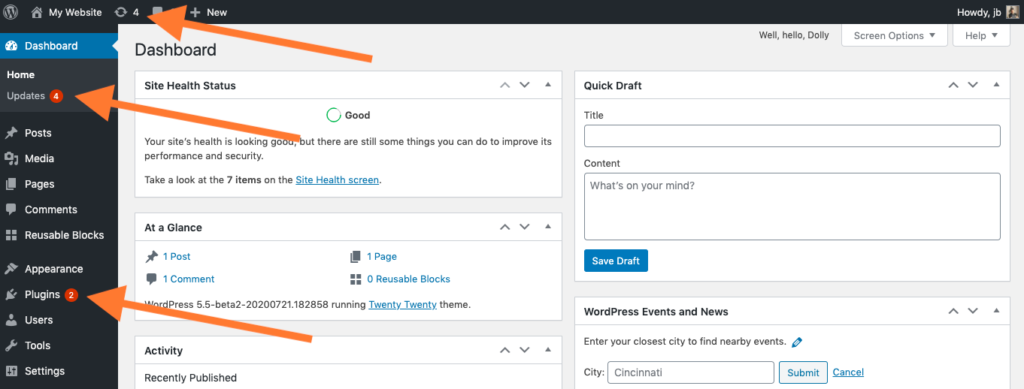
The first step is always to perform a backup on your site before implementing any other change on the site. This is followed by ensuring that your WordPress is up to date by installing the latest core, themes, and plugins. This is always useful for the enhanced security of the site and the prevention of administrative loading issues.
Conclusion
The problem with the admin in WordPress or the failure of the WordPress CSS load is often due to the presence of plugins, themes, caching, memory limits, or outdated files. With these seven easy steps, regaining access to your admin section or even ensuring that the WordPress CSS loads with ease will not be a concern. Future problems with the access process or the loading of the WordPress CSS will be reduced.
If your issue is still unresolved, get in touch with us, and we will troubleshoot it ourselves.