How to Fix “Error Establishing a Database Connection” in WordPress (Complete Beginner Guide)
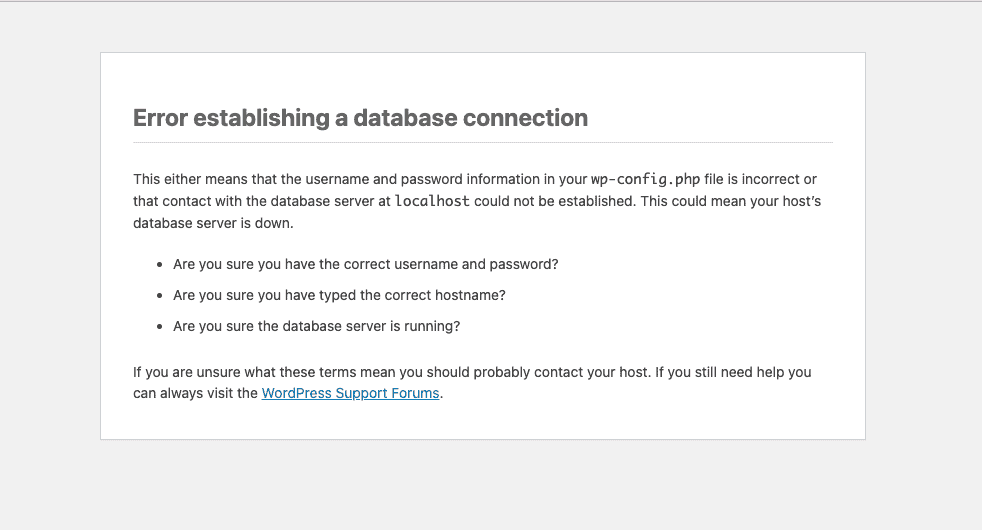
If you’ve ever opened your WordPress website and instead of your homepage saw a white screen with the message “Error Establishing a Database Connection”, you’re not alone.
This is one of the most common and scary WordPress errors, especially for beginners. Your site looks completely broken, wp‑admin doesn’t load, and panic sets in.
The good news?
This error is fixable in most cases – without losing any data.
In this guide, I’ll explain:
- What this error actually means
- Why it happens
- Step‑by‑step ways to fix it (beginner friendly)
- How to prevent it in the future
No jargon. No risky steps. Just clear solutions.
What Does “Error Establishing a Database Connection” Mean?
WordPress works by connecting two main things:
- Files (themes, plugins, WordPress core)
- Database (posts, pages, settings, users)
This error means:
WordPress cannot connect to your database, so it cannot load your site.
Your content usually still exists – WordPress just can’t reach it.
Common Causes of This Error in WordPress
Before fixing it, it helps to understand why it happens.
1. Incorrect Database Credentials
Wrong database name, username, or password in wp-config.php.
2. Corrupted Database
Database tables get corrupted due to crashes, plugin issues, or failed updates.
3. Web Hosting Server Issues
Database server may be down or overloaded.
4. Corrupted WordPress Files
Core files damaged during updates or malware infections.
5. Too Much Traffic
Hosting can’t handle the load, database connection fails temporarily.
Step 1: Check Your WordPress Database Credentials (Most Common Fix)
This is the #1 cause of this error.
Where to Check
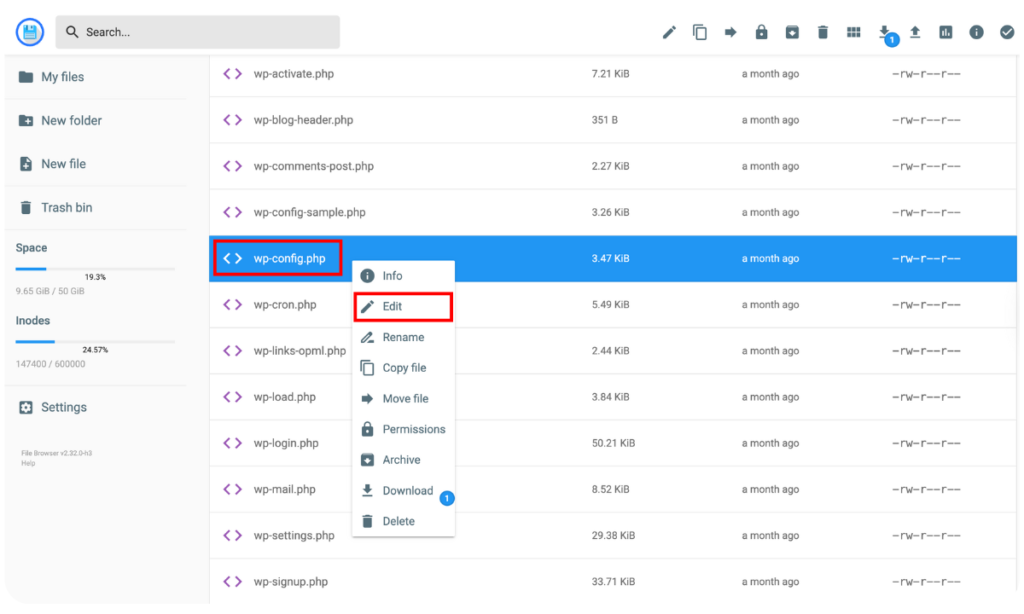
Open the wp-config.php file in your WordPress root folder.
Look for these lines:
define('DB_NAME', 'database_name');
define('DB_USER', 'database_user');
define('DB_PASSWORD', 'database_password');
define('DB_HOST', 'localhost');
What to Do
- Go to your hosting control panel
- Open Database / MySQL section
- Verify:
- Database name
- Username
- Password
- Update
wp-config.phpif anything doesn’t match
💡 Tip: If you recently changed hosting or reset database passwords, this is likely the issue.
Step 2: Check if the Database Server Is Down
Sometimes the problem isn’t your site – it’s your host.
How to Check
- Try logging into cPanel
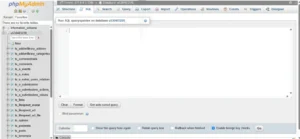
- Open phpMyAdmin
- If phpMyAdmin doesn’t load → database server issue
What to Do
- Contact hosting support
- Ask if MySQL server is down
- Wait or ask for a server restart
Shared hosting users face this more often.
Step 3: Repair a Corrupted WordPress Database
If credentials are correct, your database may be corrupted.
Enable Database Repair Mode
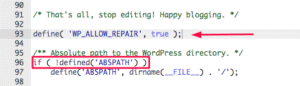
Add this line to wp-config.php:
define('WP_ALLOW_REPAIR', true);
Now visit:
https://yourwebsite.com/wp-admin/maint/repair.php
Click:
- Repair Database
- or Repair and Optimize Database
After fixing:
Remove the line from wp-config.php immediately
🔒 This page is public – don’t leave it enabled.
Step 4: Check if Your Database Host Is Correct
Most hosts use:
localhost
But some use:
127.0.0.1mysql.yourhost.com
Check your hosting documentation or ask support.
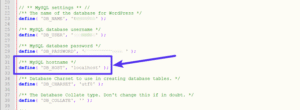
Update this line if needed:
define('DB_HOST', 'localhost');
Step 5: Fix Corrupted WordPress Files
If the database is fine, core files might be broken.
Safe Way to Fix
- Download fresh WordPress from wordpress.org
- Delete these folders from the download:
/wp-content/wp-config.php
- Upload remaining files via FTP
- Overwrite existing files
⚠️ This does not delete content or settings.
Step 6: Disable Plugins (If Admin Is Accessible)
Sometimes a plugin causes database crashes.
If you can access files:
- Rename
/wp-content/plugins/toplugins-old - Refresh site
If it works:
- Rename back
- Activate plugins one by one
This method is also useful when WordPress admin is not loading.
Step 7: Check for Hosting Resource Limits
Low memory or CPU limits can break database connections.
Signs:
- Site works sometimes
- Error appears during traffic spikes
Solution
- Upgrade hosting
- Enable object caching
- Optimize database
You may also see related issues like:
Step 8: Restore a Backup (Last Resort)
If nothing works:
- Restore a recent backup
- Ensure database is included
- Test before going live
Always keep:
- Daily backups
- Off‑site backups
How to Prevent This Error in the Future
1. Use Reliable Hosting
Cheap hosting causes most database issues.
2. Avoid Too Many Plugins
Bad plugins = unstable databases.
3. Keep WordPress Updated
Old core files cause compatibility problems.
4. Regular Database Optimization
Clean revisions, transients, and spam.
5. Monitor Uptime & Errors
Early warnings save hours of downtime.
Related WordPress Error Guides
- How to Fix WordPress White Screen of Death
- WordPress Site Stuck in Maintenance Mode – Step‑by‑Step Fix
- How to Regenerate .htaccess File in WordPress
- WordPress Critical Error: Complete Beginner Guide
Final Thoughts
The “Error Establishing a Database Connection” looks terrifying, but it’s usually caused by:
- Wrong credentials
- Hosting issues
- Database corruption
Fix it step by step, don’t panic, and never make random changes.
You’re building real topical authority here – this post fits perfectly with your existing cluster and will age very well in search.