How to Regenerate .htaccess File in WordPress (Step‑by‑Step Guide)
Introduction
If your WordPress website suddenly starts showing 404 errors, permalinks stop working, or pages refuse to load properly, the problem often points to a single file: .htaccess.
The frustrating part?
Most beginners don’t even know this file exists – yet it controls how your entire site behaves.
The good news? To regenerate .htaccess file in WordPress is safe, easy, and reversible when done correctly.
In this complete beginner‑friendly guide, you’ll learn:
- What the .htaccess file is
- Why it gets corrupted
- When you should regenerate it
- Multiple safe methods to regenerate it
- Common mistakes to avoid
- FAQs beginners usually ask
No technical jargon. No risky shortcuts.
What Is the .htaccess File in WordPress?
The .htaccess file is a configuration file used by servers running Apache (and compatible servers).
In WordPress, it controls:
- Permalink structure
- URL rewriting
- Redirects
- Access permissions
- Security rules
- Caching rules (sometimes)
Think of it as a traffic controller for your website URLs.
If the file is missing or corrupted, WordPress doesn’t know how to route visitors correctly – and errors start appearing.
Common Problems Caused by a Broken .htaccess File
A damaged or missing .htaccess file can trigger several issues, including:
❌ WordPress 404 error on pages or posts
❌ Permalinks not working
❌ Images or CSS not loading
Sometimes, these issues look similar to a WordPress admin not loading problem or even a WordPress 500 internal server error, which is why beginners often misdiagnose the issue.
What leads to Regenerate .htaccess File in WordPress?
Here are the most common reasons:
1. Plugin Conflicts
Security, caching, or redirection plugins often modify the .htaccess file automatically.
A failed update or bad configuration can corrupt it.
2. Theme Changes
Some themes add rewrite rules or redirects that interfere with existing rules.
3. Server Migration
Moving your site to a new host without proper configuration can break the file.
4. Manual Edits
A single typo in .htaccess can break your entire site.
5. Malware or Failed Updates
In some cases, malicious scripts or incomplete updates modify the file incorrectly.
When Should You Regenerate .htaccess File in WordPress?
You should regenerate .htaccess file in wordpress if:
- You see 404 errors on posts or pages
- Permalinks suddenly stop working
- You recently changed permalink settings
- You removed or installed a plugin affecting URLs
- You fixed a WordPress white screen of death and URLs still don’t work
Regenerating the file is often the first safe troubleshooting step before trying advanced fixes.
Method 1: Regenerate .htaccess Using WordPress Dashboard (Easiest)
This is the safest and recommended method for beginners.
Step‑by‑Step Instructions:
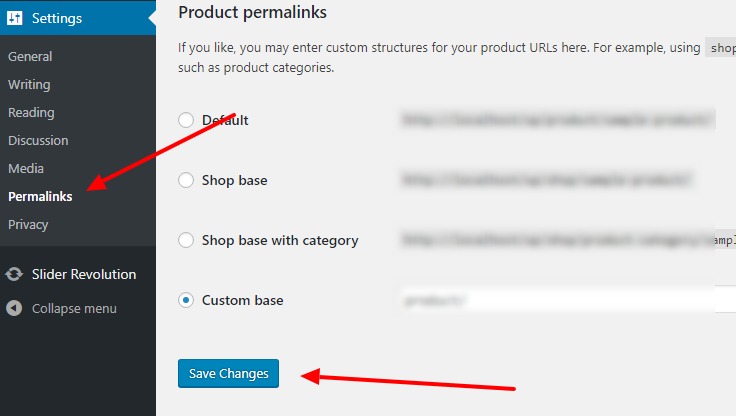
- Log in to your WordPress dashboard
- Go to Settings → Permalinks
- Do not change anything
- Scroll down and click Save Changes
That’s it.
WordPress automatically regenerates the .htaccess file with default rewrite rules.
Why This Works
When you save permalink settings, WordPress rewrites the .htaccess file from scratch if it has permission.
This method fixes:
- Most 404 errors
- Broken permalinks
- URL rewriting issues
What If This Method Doesn’t Work?
Sometimes WordPress doesn’t have permission to write the file.
In that case, move to the next method.
Method 2: Regenerate .htaccess Using File Manager (Manual but Safe)
If dashboard regeneration fails, you can reset the file manually.
Step‑by‑Step Instructions:
- Log in to your hosting control panel
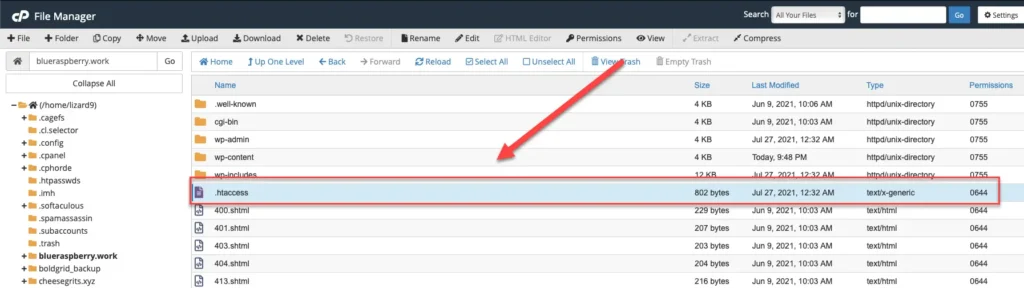
- Open File Manager
- Go to your WordPress root folder (usually
public_html) - Locate the
.htaccessfile
⚠️ If you don’t see it, enable Show Hidden Files
Rename the Existing File
Rename:
.htaccess → .htaccess_old
This acts as a backup.
Create a New .htaccess File
- Click New File
- Name it
.htaccess - Paste the default WordPress code below:
# BEGIN WordPress
RewriteEngine On
RewriteBase /
RewriteRule ^index\.php$ - [L]
RewriteCond %{REQUEST_FILENAME} !-f
RewriteCond %{REQUEST_FILENAME} !-d
RewriteRule . /index.php [L]
# END WordPress
- Save the file
- Go back to Settings → Permalinks
- Click Save Changes again
Your .htaccess file is now regenerated properly.
Method 3: Regenerate .htaccess Using FTP
If File Manager is not accessible, FTP works the same way.
Steps are identical:
- Connect via FTP
- Rename old .htaccess
- Create a new one
- Paste default rules
Method 4: Fix File Permissions (Important)
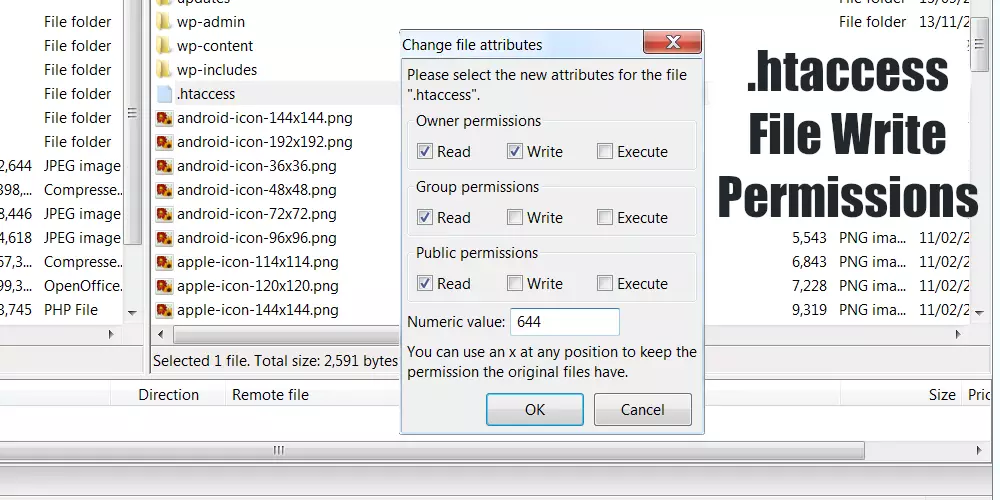
Sometimes the file exists but WordPress cannot edit it.
Correct Permissions:
.htaccess→ 644- Folders → 755
Incorrect permissions can prevent regeneration.
How to Check If .htaccess Is Working Properly
After regenerating the file:
- Visit a few posts and pages
- Check permalinks
- Refresh homepage
- Clear browser cache
If pages load correctly, the fix worked.
Common Mistakes to Avoid (Very Important)
❌ Don’t Delete Without Backup
Always rename the old file instead of deleting it.
❌ Don’t Add Random Code
Never copy .htaccess rules from random blogs unless you understand them.
❌ Don’t Force Redirect Rules
Bad redirect rules can cause infinite loops.
❌ Don’t Confuse It With wp-config.php
They serve completely different purposes.
Related WordPress Issues You May Face
If regenerating .htaccess doesn’t fully fix the issue, you may be dealing with:
- WordPress 404 error caused by deeper permalink issues
- 500 internal server error due to corrupted rules
- WordPress admin not loading because of plugin conflicts
- WordPress site stuck in maintenance mode after failed updates
These issues often overlap, which is why fixing .htaccess is usually an early troubleshooting step.