WordPress Memory Exhausted Error: How to Increase PHP Memory Limit Safely?
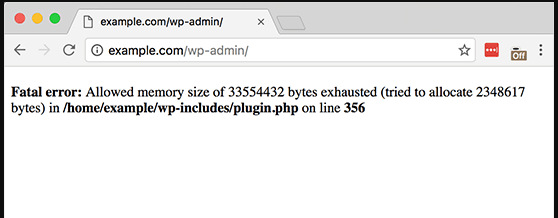
Table of Contents
ToggleIntroduction
You’re working on your WordPress site, everything seems fine – and suddenly you see this message:
Fatal error: Allowed memory size of X bytes exhausted
Or maybe your site stops loading, the admin panel crashes, or updates fail without explanation.
This is known as the WordPress memory exhausted error, and it’s one of the most common issues beginners face.
The good news?
1. This error is not dangerous
2. It does NOT mean your site is broken
3. It can be fixed safely, even if you’re not technical
In this guide, I’ll explain what the WordPress memory exhausted error actually means, why it happens, and show you multiple safe ways to increase PHP memory limit in WordPress – step by step.
No risky shortcuts. No guesswork.
What Is the WordPress Memory Exhausted Error?
WordPress runs on PHP, and PHP is allocated a limited amount of memory by your hosting server.
When your website tries to use more memory than allowed, PHP stops execution and throws this error.
Common error messages include:
- Allowed memory size of 134217728 bytes exhausted
- Fatal error: Out of memory
- WordPress memory limit exhausted
- Site crashes after installing a plugin or theme
This usually happens when:
- A plugin consumes too much memory
- A theme is poorly optimized
- Your site has grown but memory limits stayed low
Why WordPress Runs Out of Memory (Real Reasons)
Let’s break it down in simple terms.
1. Low Default PHP Memory Limit
Many hosts set PHP memory as low as 64MB or 128MB, which is not enough for modern WordPress sites.
2. Heavy Plugins
Page builders, security plugins, backup tools, and ecommerce plugins often need more memory.
3. Poorly Coded Themes or Plugins
Some plugins keep running processes in the background and consume memory continuously.
4. WooCommerce or Large Sites
Product pages, filters, and checkout processes use more PHP memory.
5. Multiple Issues Combined
Sometimes the memory error appears along with other problems, such as:
If that’s the case, fix those first before increasing memory.
How Much PHP Memory Does WordPress Need?
Here’s a safe guideline:
Website Type | Recommended PHP Memory |
Basic blog | 128MB |
Business site | 256MB |
WooCommerce | 256MB – 512MB |
Heavy plugins / builders | 512MB |
256MB is safe for most sites
Step 1: Check Your Current WordPress Memory Limit
Before changing anything, check what you’re currently using.
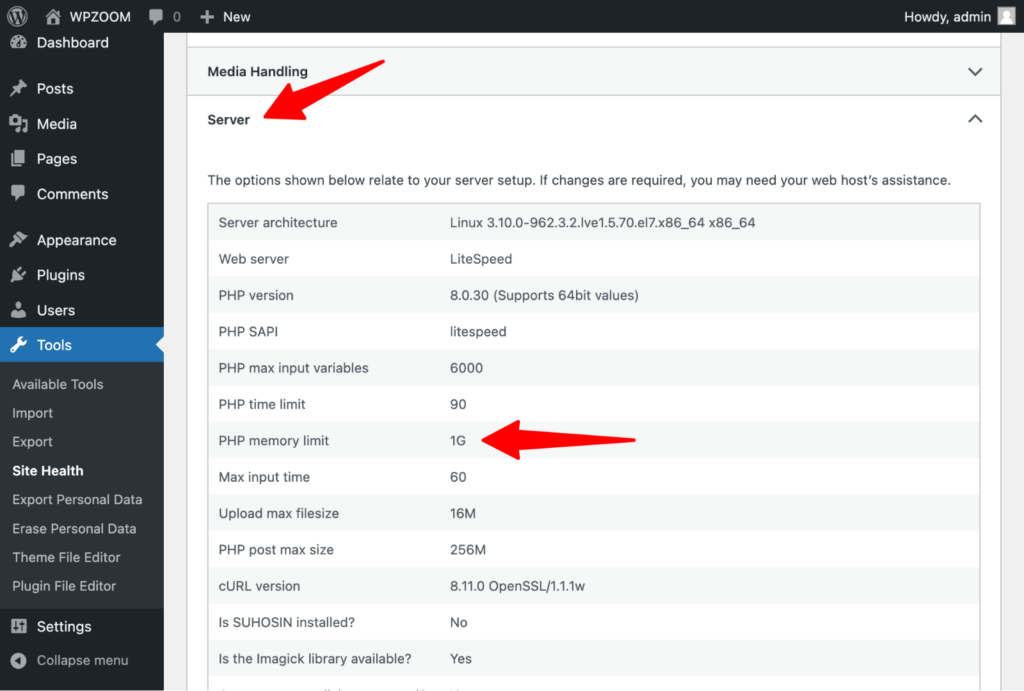
Method 1: From WordPress Dashboard
- Go to Tools → Site Health
- Open the Info tab
- Expand Server
- Look for:
- PHP memory limit
- WP memory limit
Method 2: Ask Your Hosting Panel
Some hosts show this directly inside cPanel or hPanel.
Step 2: Increase WordPress Memory Limit via wp-config.php (Safest Method)
This is the most recommended and safest method.
Steps:
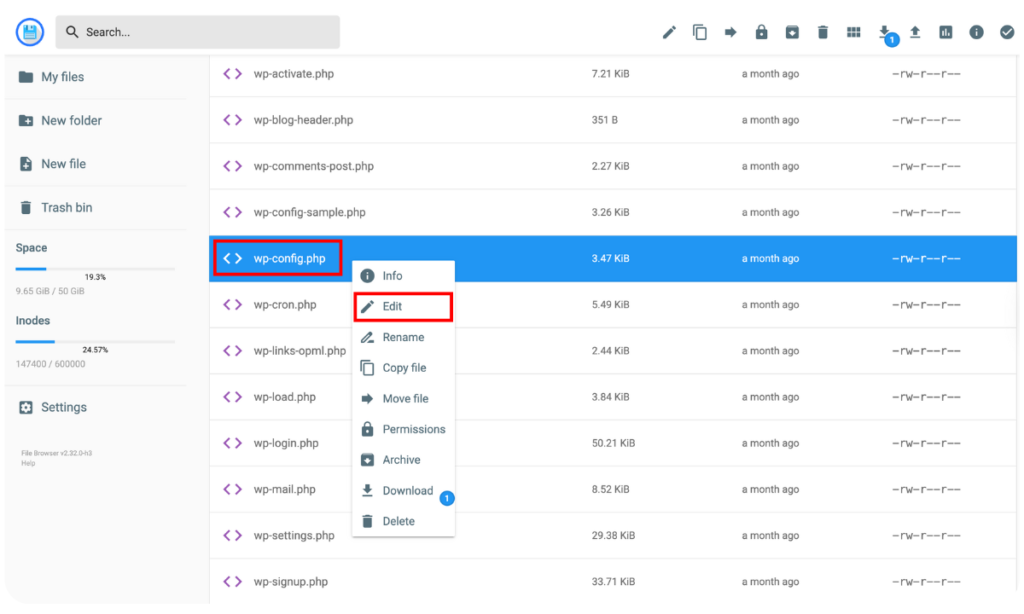
- Open File Manager or FTP
- Locate wp-config.php
- Add this above the line:
- /* That’s all, stop editing! */
define( 'WP_MEMORY_LIMIT', '256M' ); define( 'WP_MAX_MEMORY_LIMIT', '256M' );
- Save the file
- Refresh your site
- Works for most shared hosting
- No risk if done correctly
Step 3: Increase PHP Memory via .htaccess
If the wp-config method doesn’t work, try this.
Steps:
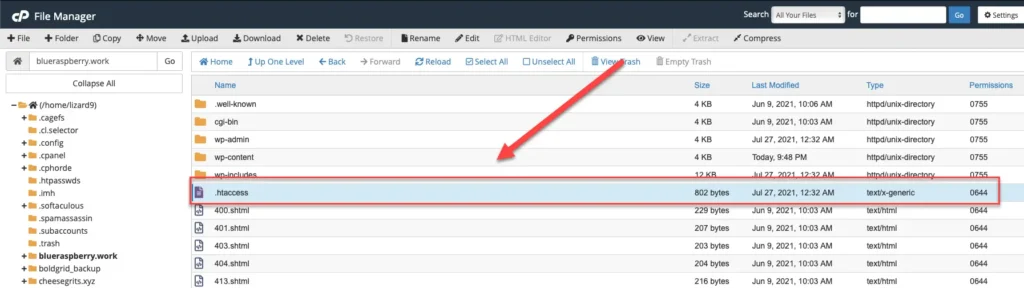
- Open .htaccess
- Add at the end:
php_value memory_limit 256M
- Save and refresh
If your site throws a 500 error after this, remove the line immediately.
Step 4: Increase PHP Memory from Hosting Control Panel
Many hosts restrict manual changes.
cPanel:
- Open MultiPHP INI Editor
- Select your domain
- Set:
- memory_limit → 256M
- Save
Hostinger / Custom Panels:
- Look for PHP Configuration
- Increase memory limit
- Apply changes
This method is very stable.
Step 5: Ask Your Hosting Provider (Often Overlooked)
If none of the above works, your host may be hard‑limiting memory.
Just ask support:
“Please increase PHP memory limit to 256MB for my domain.”
This takes 2 minutes and often solves the issue permanently.
Pro Tip!
If memory issues keep returning after every update, it’s a sign your site needs better optimization or hosting, not just higher limits.
Reduce Memory Usage (Very Important)
Increasing memory is good — but optimizing usage is better.
- Deactivate Unused Plugins
Even inactive plugins take resources.
- Replace Heavy Plugins
Avoid using multiple plugins doing the same job.
- Switch to a Lightweight Theme
Bloated themes drain memory constantly.
- Update PHP Version
PHP 8.x is faster and uses memory more efficiently than PHP 7.2.
Can Plugins Fix WordPress Memory Exhausted Error?
Short answer: No (not safely).
Plugins can:
- Hide the error
- Delay the crash
But they cannot increase server memory.
Always fix memory issues at the server level.
When Memory Errors Cause Bigger Problems
If your site:
- Goes completely blank
- Keeps refreshing
- Locks you out of wp-admin
You may be dealing with compound issues, not just memory.
In those cases, fix the root cause first, then adjust memory.
Related WordPress Issues (Recommended Reading)
If you’re facing multiple errors, these guides will help:
- WordPress Admin Not Loading? 7 Fixes to Save Your Site
- WordPress White Screen of Death: Causes & Easy Fixes
- How to Fix WordPress 500 Internal Server Error
- WordPress Site Stuck in Maintenance Mode? Here’s the Fix
- WordPress not sending emails? Check this out
These articles cover scenarios where memory errors appear alongside other failures.
FAQs: WordPress Memory Exhausted Error
Is it safe to increase PHP memory limit?
Yes, increasing up to 256MB is completely safe for WordPress.
Can low memory crash my site?
Yes. It can cause:
Why does the error come back?
Usually due to:
- Plugin updates
- New features added
- Hosting restrictions
Does changing hosting fix memory errors?
Often yes. Quality hosts allocate more resources automatically.
Should I set memory to 512MB?
Only if you:
- Run WooCommerce
- Use heavy builders
- Have large traffic
Final Thoughts
The WordPress memory exhausted error looks scary – but it’s one of the easiest WordPress problems to fix when handled correctly.
- Increase memory safely
- Optimize plugin usage
- Avoid unnecessary tools
- Fix related errors first
If you follow the steps above, your site will run faster, smoother, and more stable.
If you are unable to solve the error, contact us and we’ll review it for you.