
WordPress Critical Error: How to Fix “There Has Been a Critical Error on Your Website” (Step‑by‑Step)
Table of Contents
ToggleIntroduction
You open your WordPress website expecting everything to work normally – but instead, you’re greeted with a frustrating message:
“There has been a critical error on your website.”
No homepage.
No dashboard.
No clear explanation.
For beginners, this message can feel terrifying. It often appears suddenly, sometimes after an update, plugin installation, or theme change. And the worst part? WordPress doesn’t immediately tell you what actually went wrong.
The good news is this:
The WordPress critical error is almost always fixable.
And in most cases, your content and data are completely safe.
In this step‑by‑step guide, you’ll learn:
- What the WordPress critical error really means
- Why it happens
- How to fix it even if wp‑admin is not accessible
- How to prevent it from happening again
No technical background required – just follow along calmly.

What Is the WordPress Critical Error?
The WordPress critical error appears when something prevents WordPress from loading properly due to a fatal PHP error.
Instead of showing confusing error codes (as it used to), WordPress now displays a friendly message saying:
“There has been a critical error on your website.”
Behind the scenes, WordPress has encountered a problem so serious that it cannot continue running safely.
How Is This Different From Other WordPress Errors?
Many beginners confuse this error with similar issues, such as:
- WordPress White Screen of Death (a completely blank page)
- 500 Internal Server Error
- WordPress admin not loading
While these errors may look similar, the critical error specifically means a PHP process failed and stopped execution.
If your site is showing a blank page instead of the message, you may be facing the WordPress White Screen of Death, which is closely related but handled slightly differently.
Common Causes of the WordPress Critical Error
Understanding the cause makes fixing the issue much easier. Here are the most common reasons this error appears.
1. Plugin Conflicts or Broken Plugins
Plugins are the number one cause of critical errors.
This can happen when:
- A plugin is outdated
- Two plugins conflict with each other
- A plugin is incompatible with your PHP version
- A plugin update fails halfway
Even one faulty plugin can bring down the entire site.
💡 Always Note What You Changed Last
Before the error appeared, did you:
- Update a plugin?
- Change a theme?
- Modify a file?
The last action is often the real cause.
2. Theme Issues
Your active theme controls how WordPress displays content. If the theme contains:
- Broken code
- Compatibility issues
- Incomplete updates
WordPress may fail to load completely, resulting in a critical error.
3. PHP Version Compatibility Problems
WordPress, plugins, and themes all rely on PHP.
If your hosting provider upgrades PHP and your site isn’t compatible yet, WordPress may crash with a critical error.
4. PHP Memory Limit Exhausted
Every WordPress site has a memory limit.
When your site tries to use more memory than allowed – due to heavy plugins, traffic spikes, or large processes – WordPress may stop running and show a critical error.
5. Corrupted Core WordPress Files
Core files can become corrupted because of:
- Interrupted updates
- Failed migrations
- Malware infections
- Manual file edits
When WordPress can’t read its own files, it fails safely with a critical error.
How to Fix the WordPress Critical Error?
Now that you know what causes the problem, let’s go through the most effective solutions, starting with the easiest ones. These steps will help you diagnose and fix the WordPress Critical Error without affecting your site data.
Step 1: Check Your Email for Recovery Mode
When a critical error occurs, WordPress often sends an automatic email to the site administrator.
This email contains:
- The plugin or theme causing the issue
- A special recovery mode link
- Instructions to log in safely
What to Do:
- Check your admin email inbox
- Open the recovery link
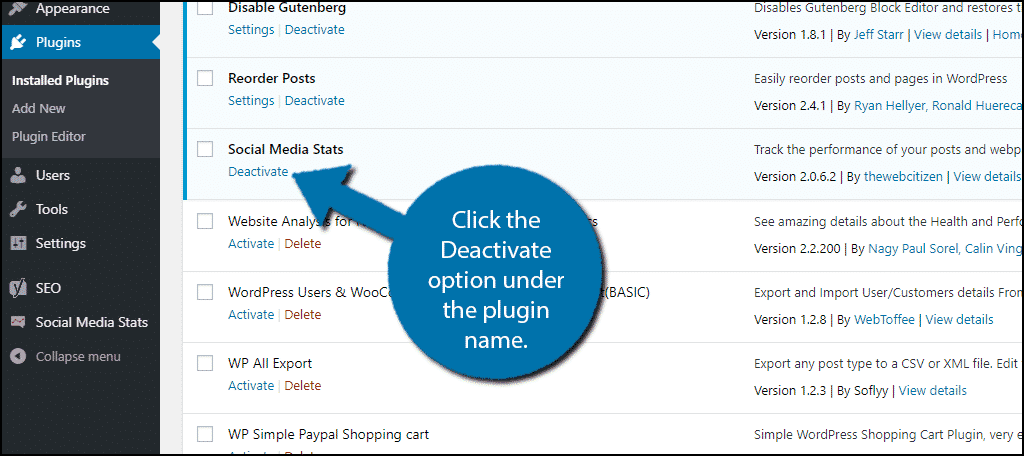
- Log in and deactivate the problematic plugin or theme
⚠️ Didn’t receive the email?
Email delivery issues are common. If your WordPress site is not sending emails, the recovery message may never arrive.
Step 2: Enable Debug Mode to See the Real Error
If recovery mode doesn’t work or no email arrives, you need to see the actual error.
How to Enable Debug Mode
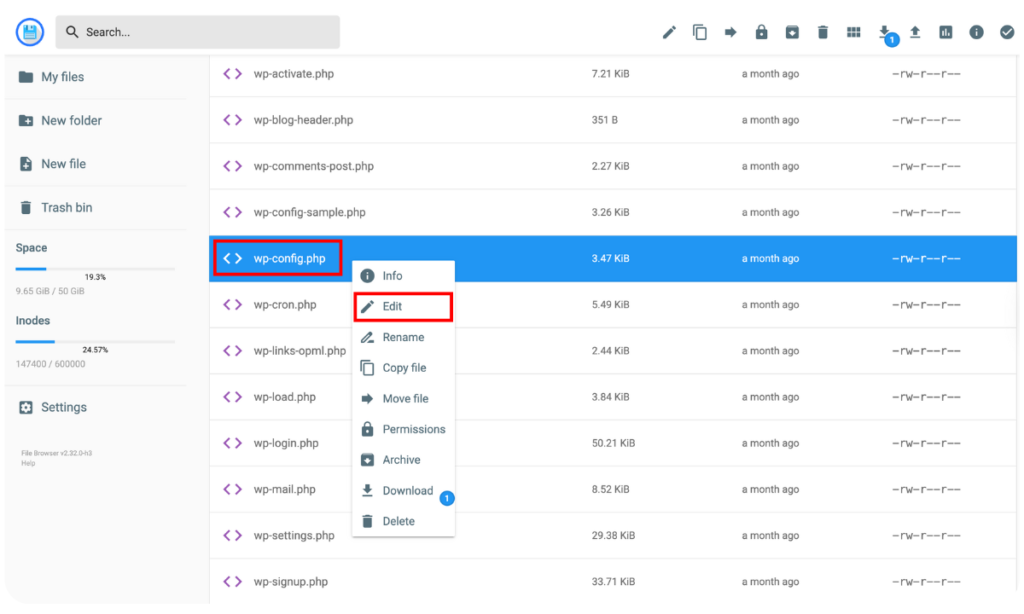
- Access your site files using FTP or File Manager
- Open wp-config.php
- Add or update these lines:
define('WP_DEBUG', true); define('WP_DEBUG_LOG', true); define('WP_DEBUG_DISPLAY', true);- Save the file and reload your website
WordPress will now display the exact error message instead of the generic critical error.
If nothing shows on the screen, check:
/wp-content/debug.log
This file contains detailed error information.
Step 3: Fix Plugin Related Critical Errors
If the error points to a plugin – or if you’re unsure – disabling plugins is the safest next step.
Disable Plugins Without wp‑admin
- Open your site files via FTP
- Go to: wp-content/plugins
- Rename the plugins folder to: plugins-disabled
This disables all plugins at once.
If the Site Loads Again
You’ve confirmed a plugin issue.
Rename the folder back to plugins, then:
- Activate plugins one by one
- Reload the site after each activation
- When the error returns, you’ve found the faulty plugin
If your dashboard was inaccessible before, this method also helps fix situations where WordPress admin is not loading.
Step 4: Fix Theme Related Critical Errors
If plugins are not the problem, your theme might be.
Switch to a Default Theme
- Go to: wp-content/themes
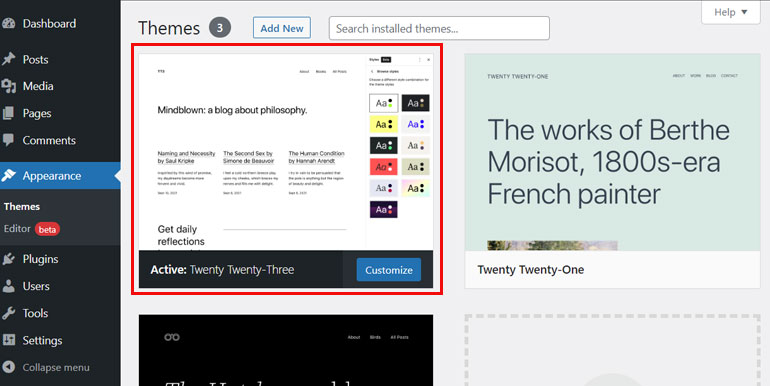
- Rename your active theme folder
- WordPress will automatically switch to a default theme like Twenty Twenty‑Three
If the site loads again, the issue is your theme.
What to Do Next
- Update the theme
- Contact the theme developer
- Replace it with a stable alternative
Step 5: Increase the PHP Memory Limit
Memory exhaustion can silently trigger critical errors.
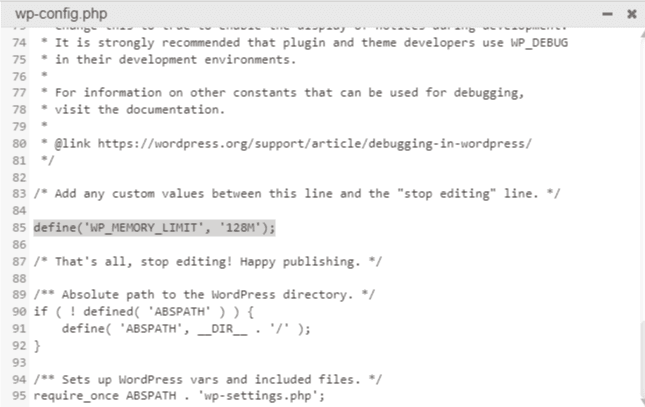
Increase Memory in wp-config.php
Add this line:
define('WP_MEMORY_LIMIT', '256M');Save the file and reload your site.
If your host limits memory, you may need to adjust it from the hosting control panel.
Step 6: Fix Corrupted Core WordPress Files
If nothing else works, your WordPress core files may be damaged.
Safe Way to Fix Core Files
- Download a fresh copy of WordPress
- Upload wp-admin and wp-includes folders
- Replace existing folders
- Do NOT touch wp-content or wp-config.php
This refreshes WordPress without affecting your data.
💡 Fix One Thing at a Time
Never apply multiple fixes together.
Test after every change so you clearly know what solved the problem.
Step 7: When wp admin Is Completely Inaccessible
Sometimes, the critical error blocks:
- Homepage
- wp‑admin
- Recovery mode
In these cases, fixes must be applied directly through files and logs.
This situation is similar to other severe errors like:
The key is staying calm and applying fixes one by one instead of guessing.
How to Prevent the WordPress Critical Error in the Future
Once your site is fixed, prevention becomes the real goal.
Best Practices:
- Avoid nulled or cracked plugins/themes
- Update plugins one at a time
- Use only well‑maintained plugins
- Keep PHP versions compatible
- Take regular backups
- Test updates on staging sites when possible
Small precautions can save hours of recovery work later.
Frequently Asked Questions (FAQs)
Is the WordPress critical error permanent?
No. In most cases, it’s temporary and fixable within minutes.
Will I lose my website data?
No. This error rarely deletes content. It only stops WordPress from loading.
Can shared hosting cause this error?
Yes. Low memory limits and PHP restrictions on shared hosting can trigger it.
How long does it take to fix?
Anywhere from 5 minutes to an hour, depending on the cause.
Final Thoughts
The WordPress critical error may look scary, but it’s simply WordPress protecting your site from further damage.
By:
- Identifying the cause
- Enabling debugging
- Fixing plugins, themes, or memory issues
You can restore your website safely and confidently.
Most importantly, don’t panic.
Every WordPress site owner faces this issue at some point – and now you know exactly how to handle it.

Good work My error is solved now thanks for posting such a informative content .
Our pleasure Zeeshan!
Keep moving forward!
My Error is solved Thanks for Posting