How to Fix WordPress Login Redirect Loop (wp‑admin Keeps Refreshing)
Table of Contents
ToggleIntroduction
You enter your username and password, click Log In, and instead of reaching the dashboard…
you’re sent right back to the login page.
Again.
And again.
And again.
No error message. No warning. Just an endless loop.
If your WordPress login keeps redirecting or wp‑admin keeps refreshing, you’re dealing with what’s known as the WordPress login redirect loop – and it’s one of the most frustrating issues WordPress users face.
The good news?
This problem looks scary, but it’s completely fixable, even if you’re not a developer.
In this guide, I’ll walk you through:
- Why the WordPress login redirect loop happens
- How to identify the real cause
- Step‑by‑step fixes that actually work
- How to prevent it from happening again
Let’s fix it – calmly and safely.
What Is the WordPress Login Redirect Loop?
A login redirect loop happens when WordPress fails to maintain your login session.
You log in successfully, but WordPress:
- Can’t store your session
- Can’t verify cookies
- Or detects conflicting settings
So instead of loading /wp-admin, it redirects you back to /wp-login.php – over and over.
This issue usually affects:
- /wp-admin access
- Dashboard login
- Admin users (sometimes only admins)
Common Signs of a Login Redirect Loop
You’re likely facing this issue if:
- wp‑admin keeps refreshing after login
- You’re redirected back to the login page repeatedly
- Login works in incognito but not normal browser
- Frontend works, but admin panel doesn’t
No error message appears at all
Pro Tip!
If the login redirect loop disappears after disabling a plugin or switching a theme, note exactly what changed. This helps you avoid reinstalling the same problematic plugin or theme later and saves time if the issue ever returns.
Why Does the WordPress Login Redirect Loop Happen?
This issue doesn’t occur randomly. One (or more) of the following causes is almost always responsible.
1. Incorrect Site URL or WordPress URL
If your Site Address and WordPress Address don’t match exactly, WordPress can’t create a valid login session.
Even small differences like:
- http vs https
- www vs non‑www
can trigger the redirect loop.
2. Browser Cookies or Cache Issues
WordPress relies heavily on cookies for authentication.
If cookies are:
- Blocked
- Corrupted
- Cached incorrectly
the login process fails silently.
3. Plugin Conflicts
Security, cache, or redirect plugins are common culprits.
A single misconfigured plugin can interfere with:
- Login cookies
- Session handling
- Admin redirects
4. Theme Problems
Some themes include custom login logic or outdated code that breaks admin authentication.
5. Corrupted .htaccess File
A damaged .htaccess file can force endless redirects – especially after migrations or permalink changes.
6. SSL / HTTPS Misconfiguration
If SSL is partially enabled (for example, frontend uses HTTPS but admin doesn’t), WordPress becomes confused and keeps redirecting.
7. Database URL Mismatch
Sometimes the database still contains old URLs, even after moving to HTTPS or a new domain.
How to Fix WordPress Login Redirect Loop (Step by Step)
Follow these fixes in order.
After each step, try logging in again.
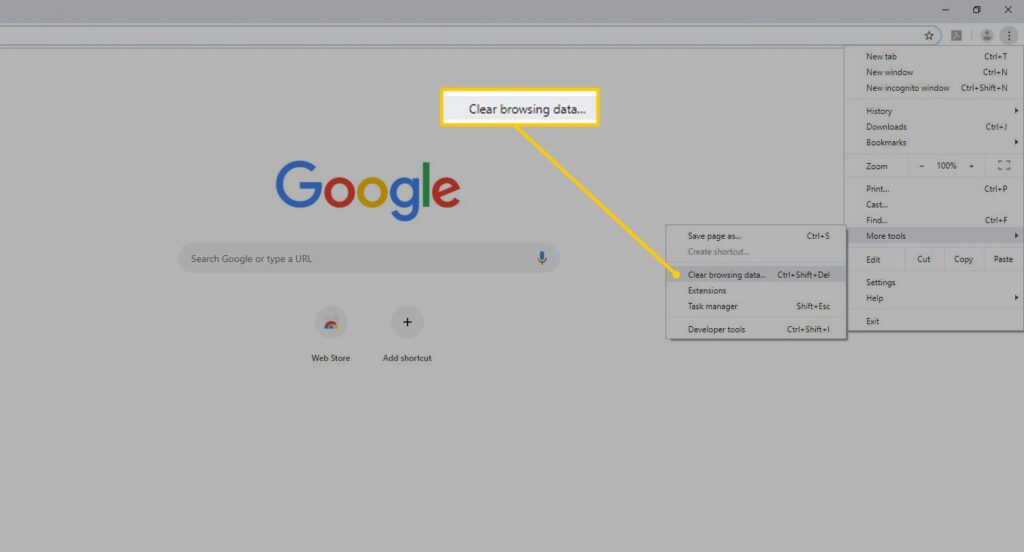
Step 1: Clear Browser Cookies & Cache (Quick Check)
Before touching your website files, rule out a browser issue.
What to do:
- Clear cookies and cache
- Try a different browser
- Use incognito/private mode
If login works in incognito, the issue is local, not WordPress.
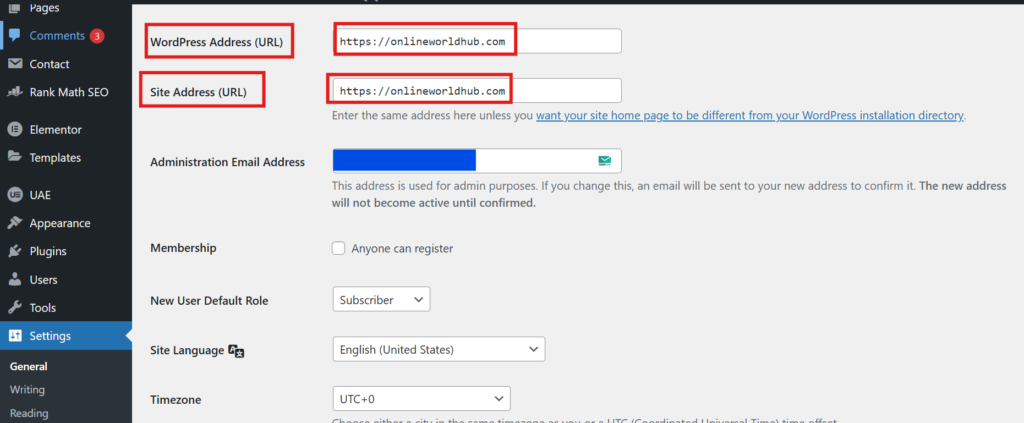
Step 2: Verify WordPress URL Settings
Incorrect URLs are one of the top causes of login redirect loops.
If you can access the dashboard:
Go to:
Settings → General
Make sure:
- WordPress Address (URL)
- Site Address (URL)
✔ Are identical
✔ Use the same protocol (https)
✔ Use the same domain version (www or non‑www)
If you cannot access wp‑admin:
Edit the wp-config.php file.
Add this near the top:
define('WP_HOME', 'https://yourdomain.com'); define('WP_SITEURL', 'https://yourdomain.com');Save the file and try logging in again.
Step 3: Disable All Plugins (Very Important)
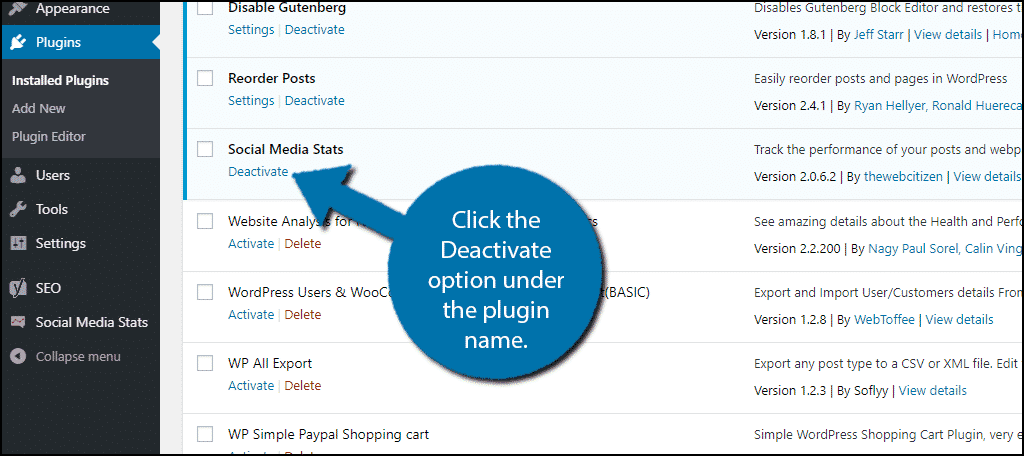
Plugin conflicts are extremely common with login issues.
How to disable plugins without dashboard access:
- Open your site using FTP or hosting File Manager
- Go to wp-content
- Rename the plugins folder to plugins-disabled
This disables all plugins instantly.
🔹 If login works now → a plugin caused the loop
🔹 Rename the folder back and activate plugins one by one to find the culprit
Step 4: Switch to a Default WordPress Theme
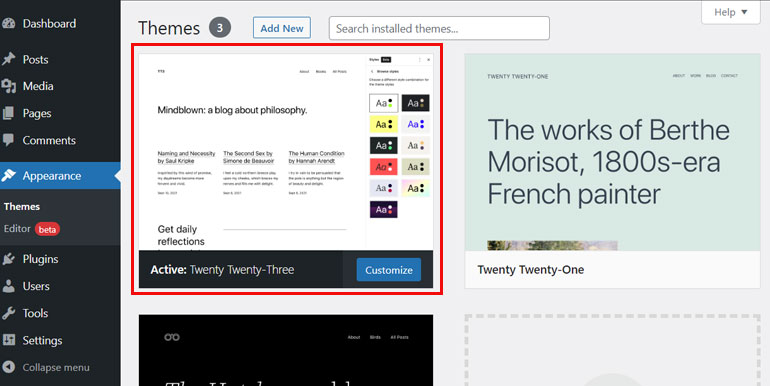
Themes can also interfere with login sessions.
How to switch themes without wp‑admin:
- Go to wp-content/themes
- Rename your active theme folder
- WordPress will automatically switch to a default theme
Try logging in again.
Step 5: Regenerate the .htaccess File
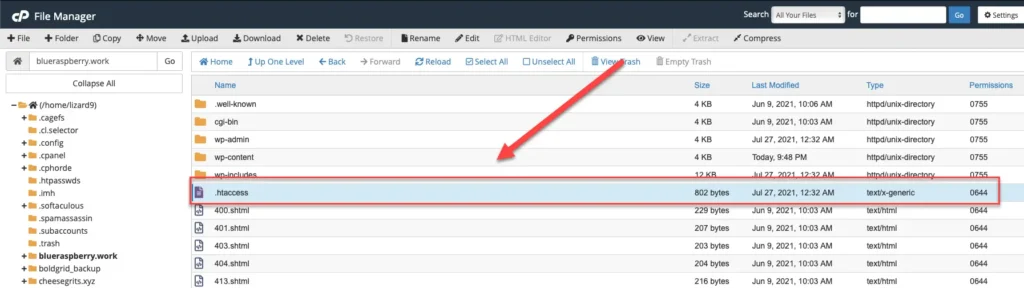
A broken .htaccess file can force endless redirects.
How to fix it:
- Locate .htaccess in your root directory
- Download a backup
- Delete the file
- Try logging in
Once access is restored:
- Go to Settings → Permalinks
- Click Save Changes to regenerate it
Step 6: Fix SSL & HTTPS Issues
SSL misconfiguration is a silent killer.
Check these:
- Is your site loading on HTTPS?
- Does your SSL certificate work?
- Is HTTPS forced inconsistently?
You can force SSL by adding this to wp-config.php:
define('FORCE_SSL_ADMIN', true); 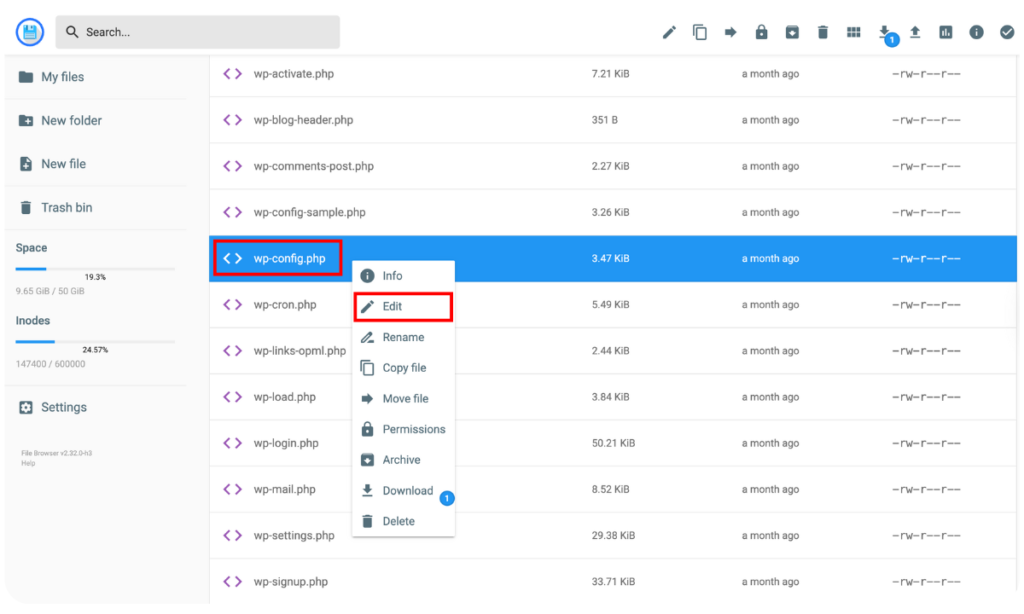
Pro Tip!
Login redirect loops often happen on sites that are overloaded with unnecessary plugins or outdated tools. Regularly review your plugins and remove anything you’re not actively using. A lighter WordPress setup is more stable, faster, and less error‑prone.
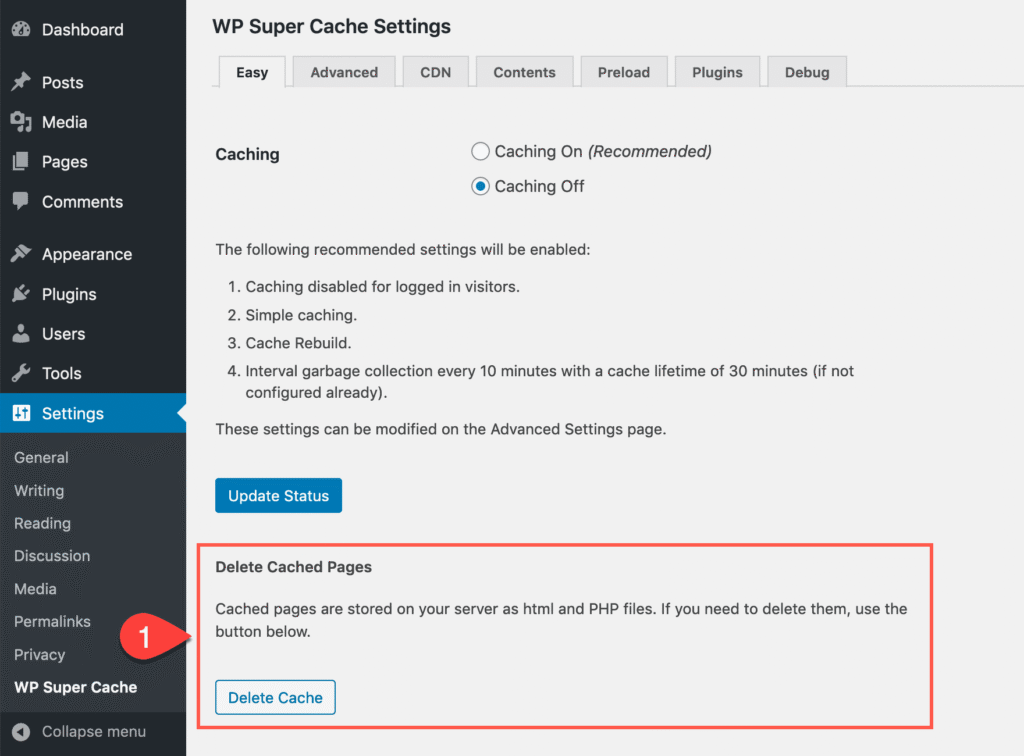
Step 7: Clear WordPress Cache (If Applicable)
If you were using a caching plugin before the issue:
- Delete its cache folder via FTP
- Or clear cache from hosting panel
Cached redirects can persist even after fixing the problem.
Step 8: Update Site URLs in the Database
If your site was recently migrated, URLs may still be outdated.
Use a database tool like phpMyAdmin:
- Find wp_options
- Update:
- siteurl
- home
Ensure they match your current domain exactly.
Step 9: Check File Permissions
Incorrect permissions can block login sessions.
Recommended permissions:
- Folders: 755
- Files: 644
Pay special attention to:
- wp-admin
- wp-includes
When the Issue Is Not a Redirect Loop
Sometimes the problem looks similar but has a different cause.
- If your screen is completely blank → check White Screen of Death
- If wp‑admin doesn’t load at all → see WordPress Admin Not Loading
- If you see server errors → check 500 Internal Server Error
Identifying the right problem saves hours of frustration.
How to Prevent Login Redirect Loops in the Future
Prevention matters just as much as fixing.
Best practices:
- Use trusted plugins only
- Avoid multiple cache or security plugins
- Always back up before updates
- Keep WordPress, themes, and plugins updated
- Use proper SSL configuration
- Avoid manual URL changes without checking database
Frequently Asked Questions (FAQs)
Why does wp admin keep refreshing after login?
Usually due to cookie issues, incorrect URLs, plugin conflicts, or SSL misconfiguration.
Can hosting cause login redirect loops?
Yes. Server caching, firewall rules, or misconfigured PHP sessions can trigger it.
Will reinstalling WordPress fix this?
Sometimes – but it should be your last option, not the first.
Is this issue dangerous?
No. It’s frustrating, not harmful. Your data is usually safe.
Final Thoughts
The WordPress login redirect loop feels overwhelming, especially when there’s no error message to guide you. But once you understand the causes, the fix becomes systematic – not stressful.
Follow the steps one by one, don’t rush, and your dashboard access will be restored.
And remember: most WordPress problems look bigger than they really are.