How to Fix WordPress 500 Internal Server Error (Beginner‑Friendly Guide)
Table of Contents
ToggleIntroduction
You open your WordPress site, expecting it to load like usual…
Instead, you’re greeted with a frustrating message:
“500 Internal Server Error.”
No explanation.
No guidance.
Just a broken site and rising panic.
If you’re a beginner, this error can feel terrifying. The good news?
The WordPress 500 Internal Server Error is common – and completely fixable.
In this guide, I’ll walk you through exactly what causes this error and show you step‑by‑step solutions, explained in simple language – no technical background required.
Let’s fix your site calmly and correctly.
What Is the WordPress 500 Internal Server Error?
The 500 Internal Server Error is a generic server-side error.
It means your server knows something went wrong — but doesn’t know how to explain it clearly.
Think of it like this:
Your website asked the server to do something,
and the server responded with:
“Something broke… I can’t tell you what.”
This makes the error confusing, but it also narrows the problem down to a few common causes.
Common Signs of the 500 Error in WordPress
You might see:
- “500 Internal Server Error”
- “HTTP Error 500”
- A completely blank page
- Error appears on admin panel, specific pages, or entire site
Sometimes, this error happens right after:
- Installing a plugin
- Updating WordPress
- Editing theme files
- Migrating your website
Once you confirm that the problem isn’t caused by the WordPress White Screen of Death the next step is to troubleshoot and fix the 500 Internal Server Error.
Pro Tip!
When dealing with WordPress errors, never apply multiple fixes at once. Make one change, refresh your site, and then move to the next step only if the issue persists.
This approach helps you clearly identify what actually caused the 500 Internal Server Error and prevents creating new problems accidentally.
Why Does WordPress Show a 500 Internal Server Error?
Here are the most common causes, explained simply:
1. Corrupted .htaccess File
This file controls how your server handles requests.
If it breaks, your site can crash instantly.
2. Plugin Conflict
One bad or incompatible plugin can break your entire site.
3. Theme Issues
Faulty code inside your active theme can trigger server errors.
4. PHP Memory Limit Exhausted
Your site may be asking for more memory than the server allows.
5. Corrupted WordPress Core Files
Incomplete updates or failed uploads can damage core files.
How to Fix the WordPress 500 Internal Server Error (Step by Step)?
Now let’s fix these — one safe step at a time.
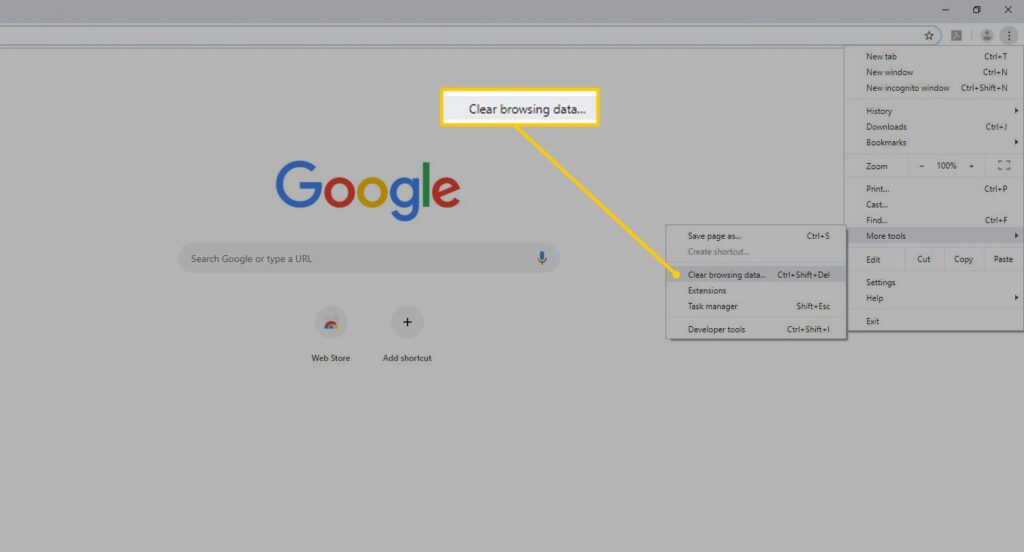
Step 1: Refresh & Clear Cache (Quick Check)
Before changing anything:
- Hard refresh your browser (Ctrl + F5)
- Clear your browser cache
- Try opening your site in incognito mode
If the error remains, move on.
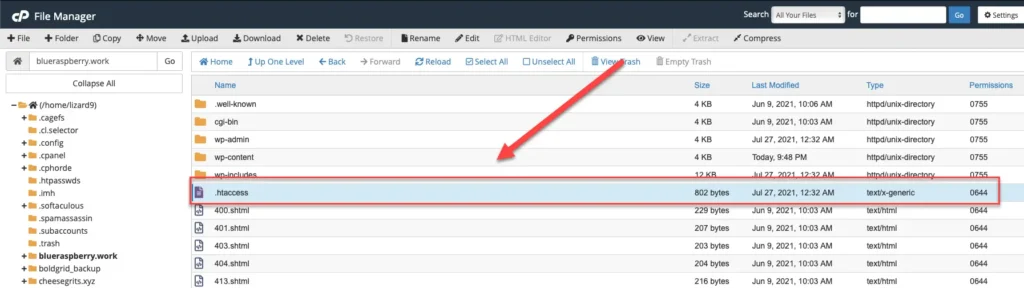
Step 2: Fix the .htaccess File (Most Common Solution)
This fixes the issue for many users.
How to Do It:
- Log in to your hosting control panel or FTP
- Go to your site’s root folder
- Find .htaccess
- Rename it to:
- .htaccess-old
- Reload your website
If your site loads now – problem solved.
Final Step (Important):
- Go to WordPress Dashboard → Settings → Permalinks
- Click Save Changes
This generates a fresh .htaccess file.
Step 3: Disable All Plugins (Safely)
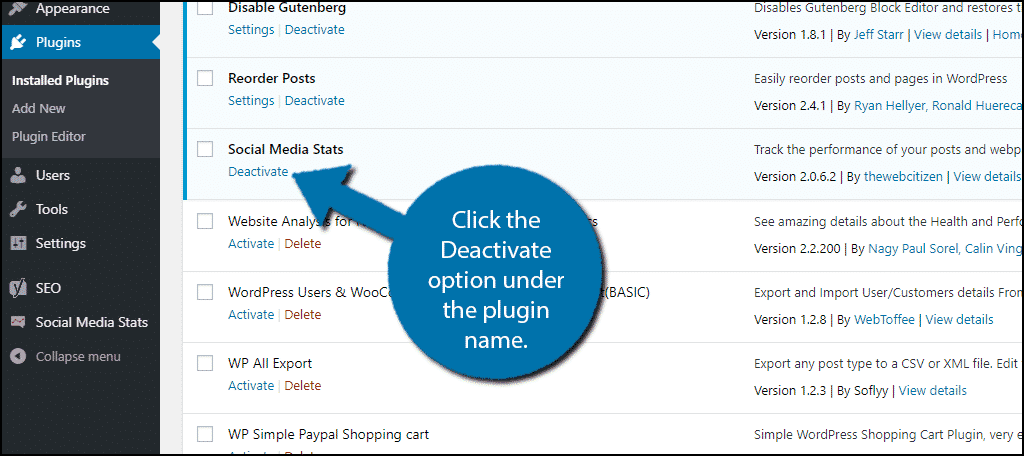
Plugin conflicts are a top cause of the WordPress 500 Internal Server Error.
If You Can Access Dashboard:
- Go to Plugins
- Select all → Deactivate
If You Cannot Access Dashboard:
- Open FTP or File Manager
- Go to:
- wp-content/plugins
- Rename the folder to:
- plugins-disabled
Reload your site.
- If it works → a plugin is causing the issue
- Rename folder back → activate plugins one by one to find the culprit
If your admin area itself isn’t loading, this is similar to issues discussed in our WordPress Admin Not Loading guide.
Step 4: Switch to a Default WordPress Theme
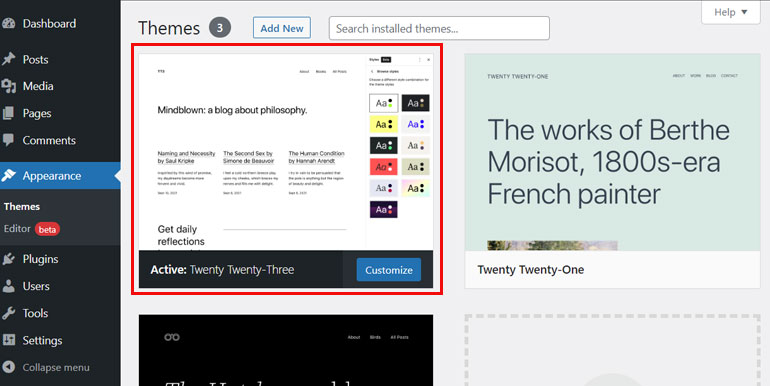
If plugins aren’t the issue, your theme might be.
How:
- Go to:
- wp-content/themes
- Rename your active theme folder
- WordPress will auto-switch to a default theme (like Twenty Twenty‑Three)
Reload your site.
If it works:
- Your theme has faulty code
Update or replace the theme
Step 5: Increase PHP Memory Limit
Low memory can silently crash WordPress.
How to Increase Memory:
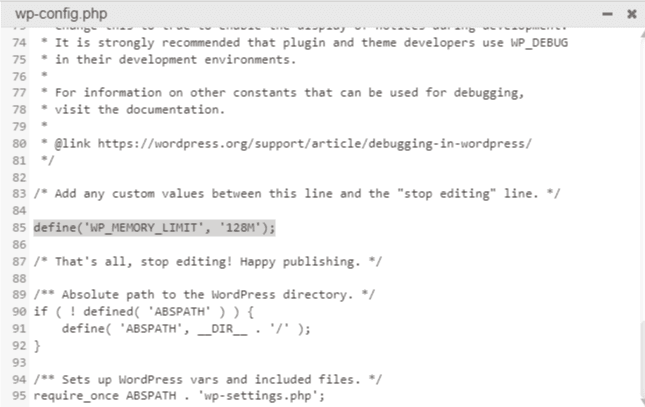
- Open wp-config.php
- Add this line:
define('WP_MEMORY_LIMIT', '256M');- Save & upload the file
Reload your site.
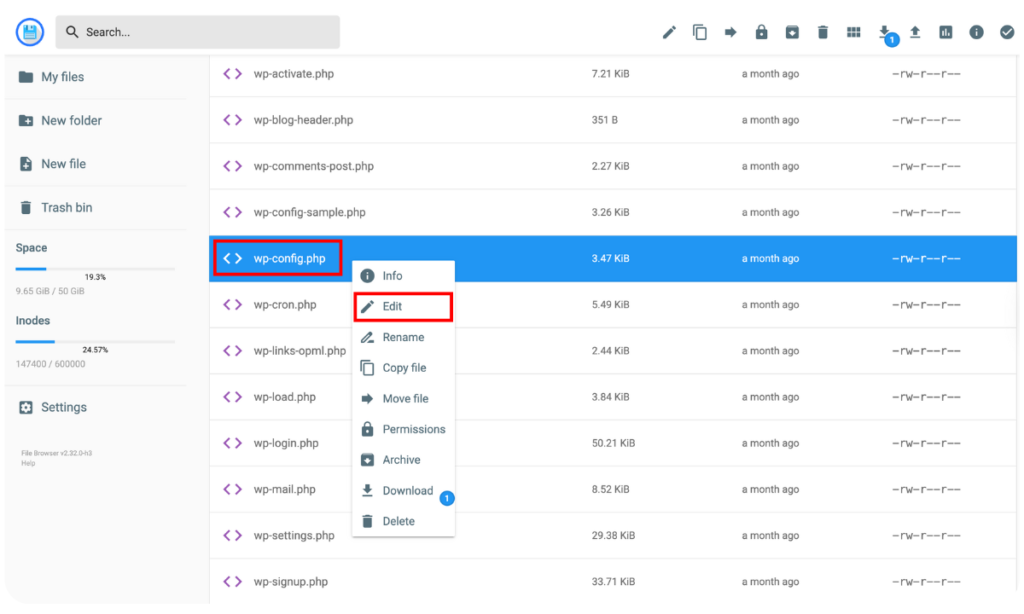
Step 6: Enable Debug Mode (Find the Exact Error)
If nothing worked yet, debugging will show what’s actually breaking.
Enable Debugging:
Add this to wp-config.php:
define('WP_DEBUG', true); define('WP_DEBUG_LOG', true); define('WP_DEBUG_DISPLAY', false);Now check:
wp-content/debug.log
This file reveals:
- Broken plugin
- Missing file
- PHP error line
This step is powerful and often leads to a quick fix.
Step 7: Re Upload WordPress Core Files
If core files are corrupted:
- Download fresh WordPress from wordpress.org
- Upload:
- wp-admin
- wp-includes
- Do NOT touch wp-content
This safely repairs WordPress without deleting content.
Pro Tip!
Before editing files like .htaccess, wp-config.php, or server settings, create a full website backup.
Even a small typo can break your site, and a backup ensures you can instantly restore everything if something goes wrong.
Step 8: Contact Hosting Support (When Needed)
If the error still persists:
- Ask hosting support to check server logs
- They can see issues invisible to users
Sometimes, server misconfigurations cause the 500 error.
How to Prevent WordPress 500 Errors in the Future
- Always keep backups
- Avoid nulled plugins/themes
- Update plugins carefully
- Use reliable hosting
- Limit unnecessary plugins
Preventive habits save hours of panic later.
FAQs
Is WordPress 500 error dangerous?
No, but it can make your site temporarily inaccessible.
Can I fix it without technical knowledge?
Yes. Most fixes require simple file renaming.
Will I lose my content?
No, if you follow steps carefully.
Is this related to maintenance mode issues?
Sometimes – especially after failed updates. If your site gets stuck mid‑update, see our WordPress Site Stuck in Maintenance Mode guide.
Final Thoughts
The WordPress 500 Internal Server Error looks scary – but it’s rarely permanent.
Most of the time, the fix is:
- a broken plugin
- a corrupted .htaccess file
- low server memory
By following this guide step by step, you can confidently bring your site back online – even as a beginner.
If your issue still isn’t resolved, don’t panic. Contact us and we’ll review it for you.