How to Fix WordPress 404 Error : 7 Easy Steps
Table of Contents
ToggleIntroduction
You click on one of your WordPress pages expecting it to load normally – but instead, you’re greeted with a frustrating message:
“404 Page Not Found.”
No content.
No explanation.
Just a broken page.
If you’re new to WordPress, this can feel scary. You might think your page is deleted, your site is broken, or something went terribly wrong. The good news?
In most cases, a WordPress 404 error is easy to fix, even if you’re a beginner.
This guide will walk you through exactly why WordPress 404 errors happen and show you step‑by‑step solutions to fix them-starting with the most common and safest method: the permalink fix.
What Is a 404 Error in WordPress?
A 404 error simply means that WordPress cannot find the page you’re trying to access.
This usually happens when:
The page exists in the dashboard
But WordPress can’t correctly map the URL to it
In simple words, the page is there—but WordPress doesn’t know how to reach it.
This issue often affects:
Pages
Posts
Category archives
Custom post types
Common Signs of a WordPress 404 Error
You may be facing a WordPress 404 error if:
Pages show “Page Not Found” but exist in admin
Posts open correctly, but pages don’t
Only old URLs return 404 errors
Category or tag pages don’t load
404 errors appear after migration or plugin changes
Why WordPress Shows 404 Errors on Pages
Understanding the cause makes fixing it much easier.
1. Broken or Incorrect Permalinks (Most Common)
Permalinks control how your URLs are structured.
If they become corrupted or outdated, WordPress cannot locate pages correctly.
This often happens after:
Installing or removing plugins
Migrating your website
Changing server settings
Updating WordPress
Note:
Sometimes, a 404 error appears right after a WordPress update or plugin change, especially when backend issues occur. If you’re also unable to access your dashboard, check our detailed guide on WordPress admin not loading to fix admin‑side problems first.
2. .htaccess File Issues
WordPress uses the .htaccess file to manage URLs.
If this file is missing, corrupted, or has incorrect rules, 404 errors can appear.
3. Plugin Conflicts
Some plugins—especially SEO, caching, and security plugins—can interfere with URL rewriting.
4. Theme Problems
A poorly coded or outdated theme may not support WordPress rewrite rules correctly.
5. Deleted or Changed Page Slugs
If a page slug was changed or the page was deleted, the old URL will show a 404 error.
How to Fix 404 Error on WordPress Pages (Step‑by‑Step)
Let’s go through the solutions from easiest to advanced.
Follow them in order – most beginners fix the issue in Step 1.
Step 1: Fix 404 Error Using Permalink Settings (Recommended)
This is the most effective solution for WordPress 404 errors.
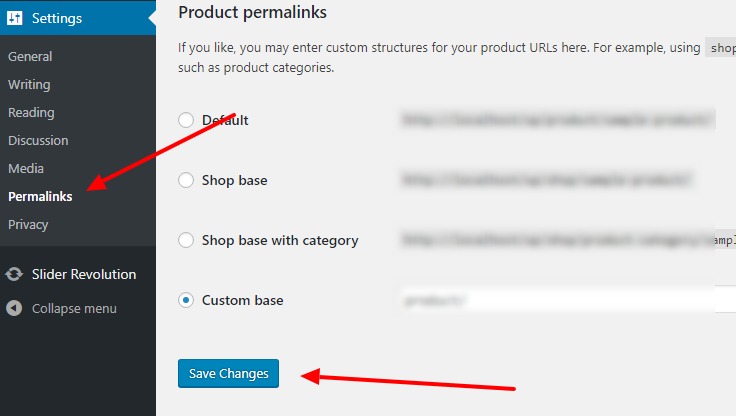
How to Reset Permalinks
Log in to your WordPress dashboard
Go to Settings → Permalinks
Select Post name (or keep your existing structure)
Click Save Changes
Even if you don’t change anything, clicking Save Changes refreshes WordPress rewrite rules.
Now reload your broken page.
In most cases, the 404 error is gone instantly.
Step 2: Manually Reset Permalinks via .htaccess
How to Edit the .htaccess File
Open your hosting file manager or FTP
Go to your site’s root folder
Locate
.htaccessDownload a backup
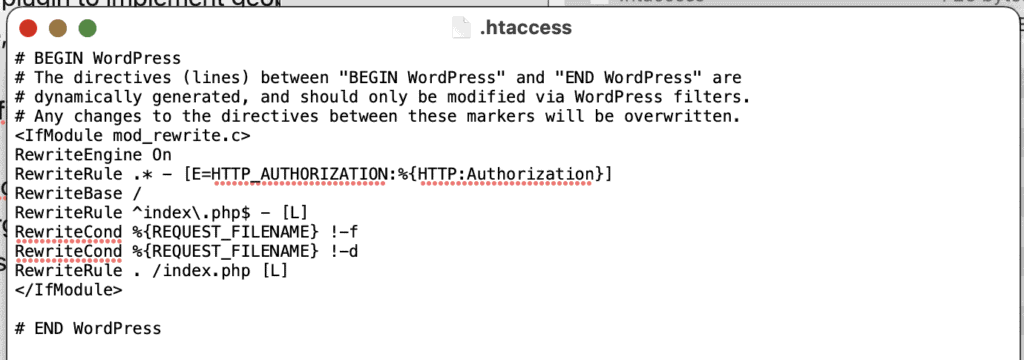
Replace its content with this:
# BEGIN WordPress
RewriteEngine On
RewriteBase /
RewriteRule ^index\.php$ - [L]
RewriteCond %{REQUEST_FILENAME} !-f
RewriteCond %{REQUEST_FILENAME} !-d
RewriteRule . /index.php [L]
# END WordPress
Save the file
Refresh your site
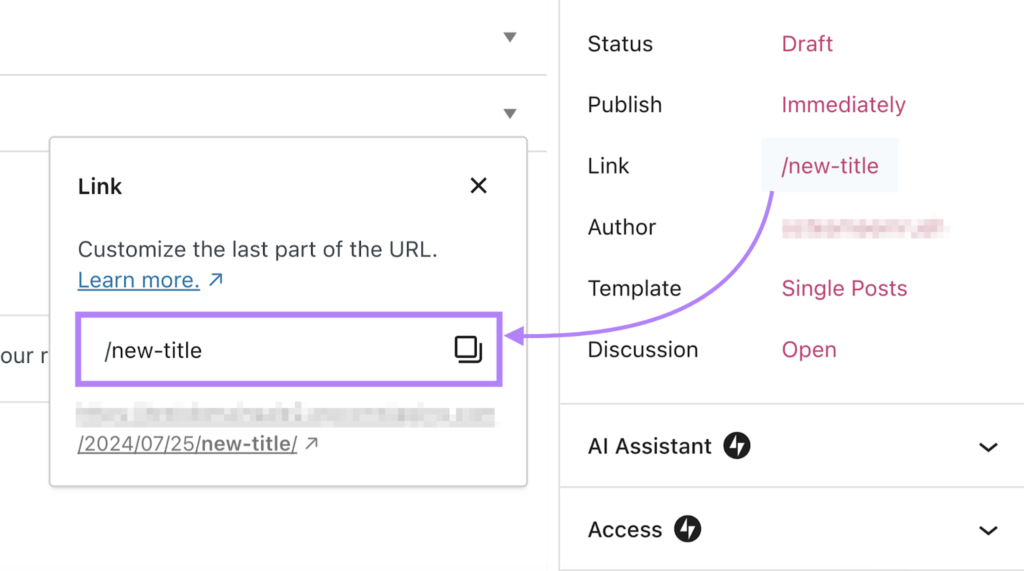
Step 3: Check Page Slug & URL Structure
Sometimes the page exists—but its URL has changed.
What to Check:
Go to Pages → Edit Page
Confirm the slug matches the URL
Avoid special characters or spaces
Click Update even if nothing changed
Then test the page again.
Step 4: Disable Plugins Temporarily
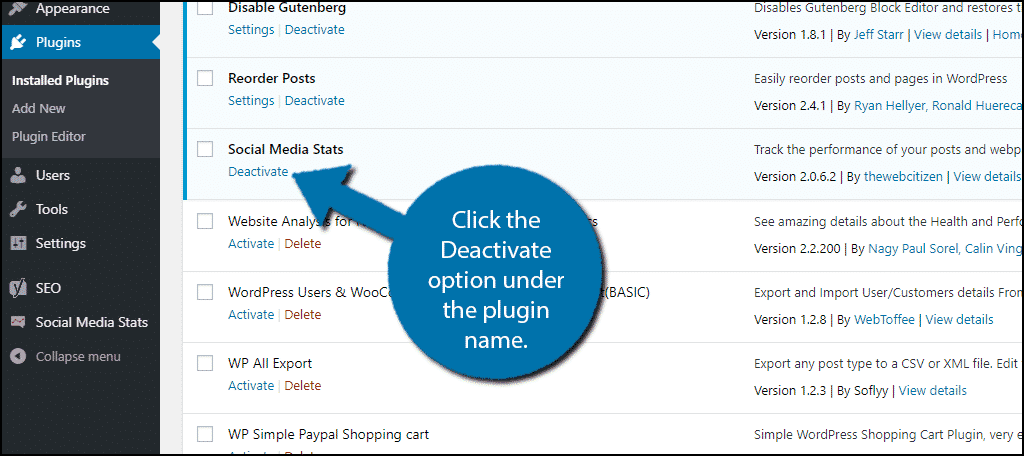
A plugin conflict can silently cause 404 errors.
How to Test Plugins
Go to Plugins
Deactivate all plugins
Test your page
Reactivate plugins one by one
If the error returns after activating a plugin, you’ve found the cause.
Step 5: Switch to a Default WordPress Theme
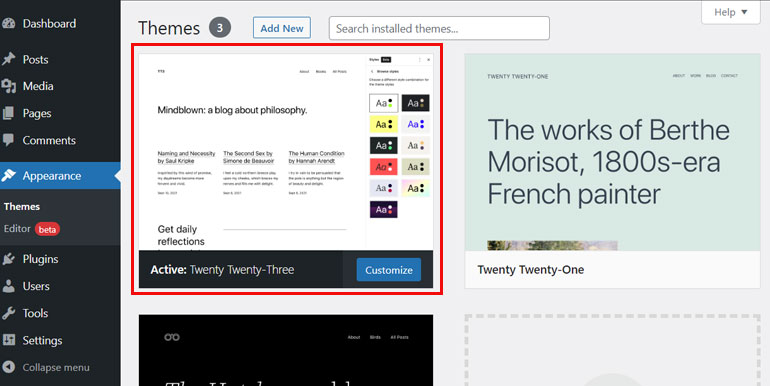
Themes can also interfere with URL handling.
How to Test Theme Issues
Go to Appearance → Themes
Activate a default theme (like Twenty Twenty‑Three)
Test the page
If the error disappears, your theme needs fixing or updating.
Step 6: Check for Deleted Pages or Redirects
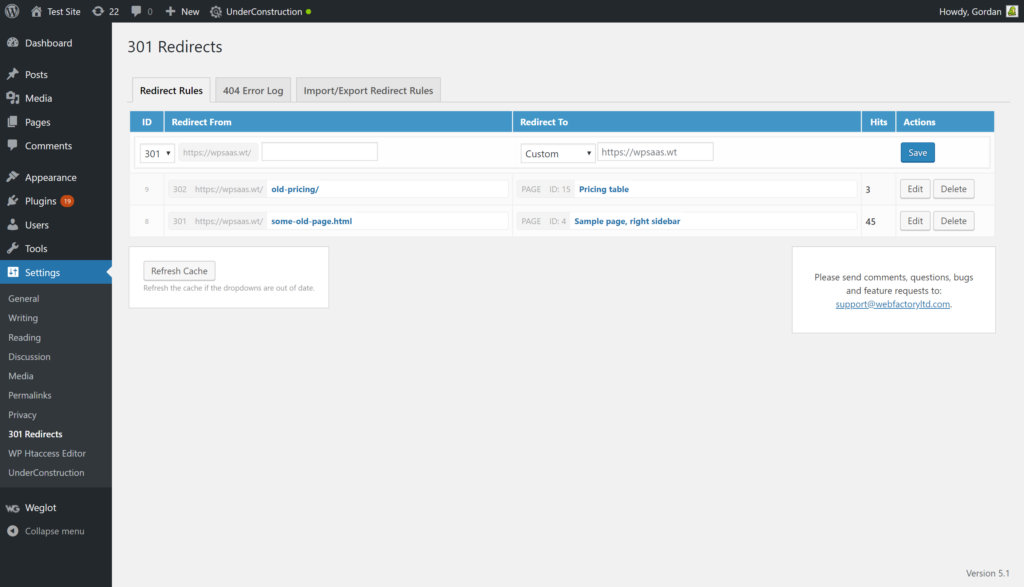
If a page was deleted, WordPress will correctly show a 404 error.
What You Can Do:
Restore the page from trash
Or create a 301 redirect to a new page using a redirect plugin
Note:
In many cases, a failed update can leave your site in an unstable state, causing errors like broken pages or missing URLs. If your site is showing maintenance messages or behaving strangely, read our step‑by‑step guide on WordPress site stuck in maintenance mode to resolve it safely.
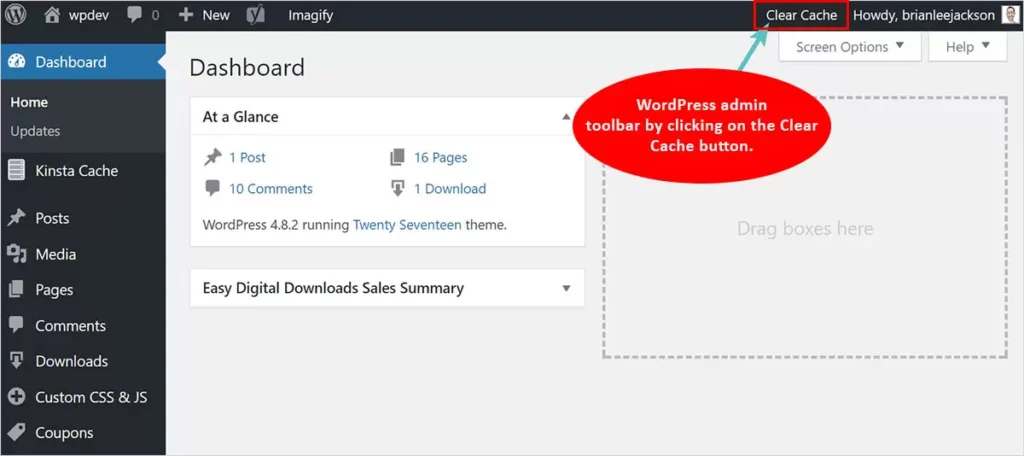
Step 7: Flush Cache (Very Important)
Caching plugins may continue showing old broken URLs.
Clear cache from:
Your caching plugin
Hosting cache
CDN (if used)
Then test again.
How to Prevent 404 Errors in the Future
Follow these best practices:
Avoid changing permalinks frequently
Always set redirects when changing URLs
Use reliable plugins only
Backup your site before updates
Clear cache after major changes
FAQs About WordPress 404 Errors
Why do WordPress pages show 404 but posts work?
Pages and posts use different rewrite rules. Permalink issues usually affect pages first.
Will 404 errors harm SEO?
Yes – if left unfixed. A few temporary 404s are okay, but broken pages reduce trust and rankings.
Do I need a plugin to fix 404 errors?
No. Most 404 errors are fixed by resetting permalinks.
Should beginners edit .htaccess?
Only if permalink reset fails – and always keep a backup.
Final Thoughts
A WordPress 404 error may look serious, but it’s usually caused by simple permalink or rewrite issues.
By following the steps above—especially resetting permalinks – you can fix the issue quickly without touching complex code.
If your problem continues, check plugins, themes, and caching carefully. And remember:
Most WordPress errors look scary – but are completely fixable.