How to Fix WordPress Not Sending Emails: 6 Steps
Table of Contents
ToggleIntroduction
You fill out a contact form…
A customer places an order…
You request a password reset…
And then – no email arrives.
If you’re struggling with WordPress not sending emails, you’re not alone – this issue often happens silently and can affect contact forms, order notifications, and password resets.
The good news is this issue is very fixable, even if you’re a beginner.
In this guide, I’ll walk you through why WordPress emails fail and show you step‑by‑step solutions to fix WordPress not sending emails – permanently.
If you’re facing issues with wordpress admin not loading, check our latest guide here.
Why WordPress Is Not Sending Emails?
By default, WordPress uses a basic PHP mail function to send emails. Most hosting providers either limit or block this function to prevent spam.
Because of that, emails like:
Contact form submissions
Password reset emails
Order confirmations
Admin notifications
often never reach the inbox.
Here are the main reasons WordPress emails fail:
1. Hosting Server Restrictions
Many hosts disable PHP mail or mark WordPress emails as spam.
2. No Proper Email Authentication
Without SPF, DKIM, or SMTP authentication, email providers don’t trust your site.
3. Contact Form Plugin Issues
Some form plugins don’t send emails correctly without SMTP.
4. Wrong Email Address Settings
Using a generic or fake “From Email” can cause delivery failure.
How to Fix WordPress Not Sending Emails (Step by Step) ?
Let’s fix it properly.
Step 1: Install an SMTP Plugin (Most Important Step)
The best and most reliable solution is to use SMTP instead of PHP mail.
Recommended free plugins:
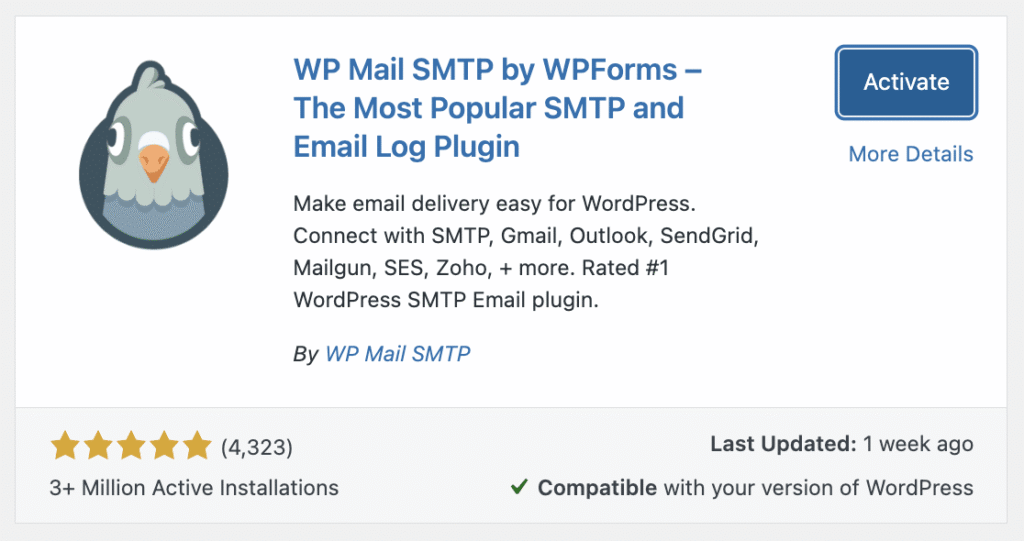
WP Mail SMTP (by WPForms)
FluentSMTP
Post SMTP Mailer
What SMTP does:
It sends emails through trusted mail servers (like Gmail, Outlook, or your hosting email), which dramatically improves deliverability.
After installing the plugin:
Activate it
Go to its settings page
Step 2: Choose an Email Sending Method
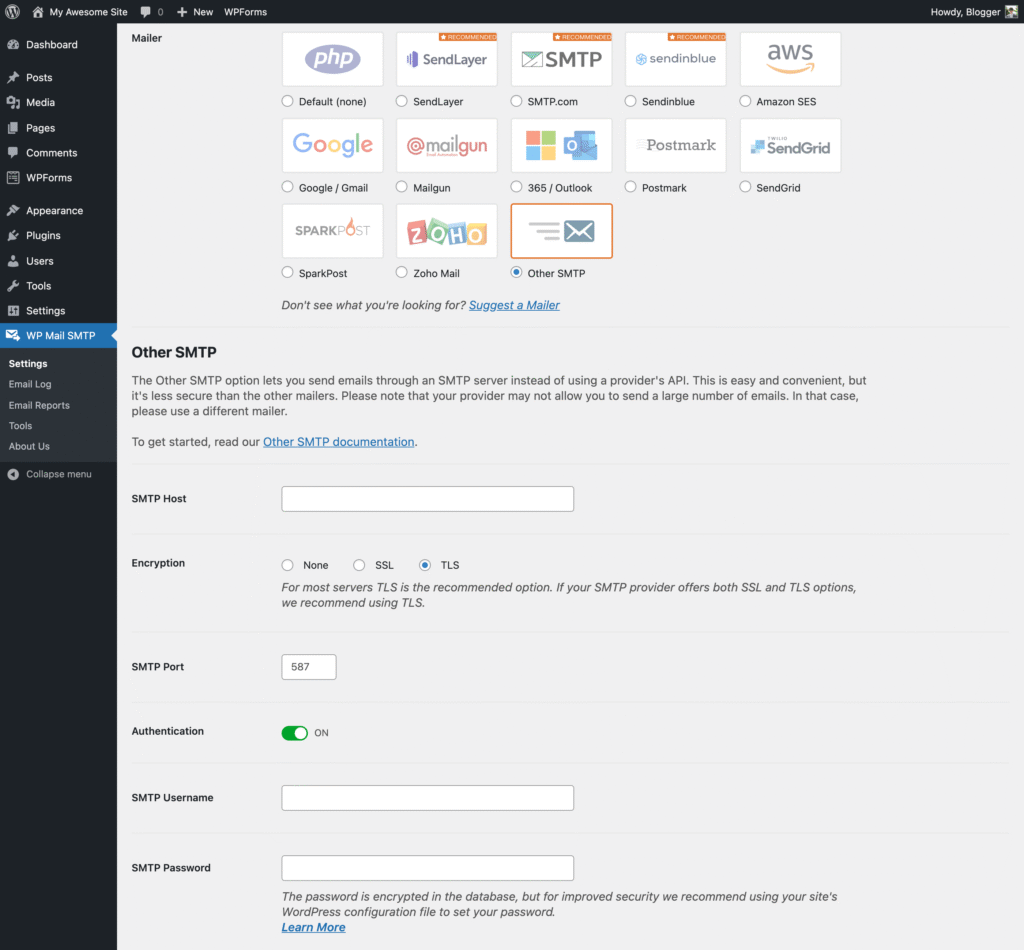
Most SMTP plugins offer multiple options. For beginners, these are the easiest:
Option 1: Gmail SMTP (Free)
Works well for small websites
Requires Google account authentication
Option 2: Hosting Email SMTP
Uses your hosting email (like info@yourdomain.com)
Easy and professional
Choose one method only and complete its setup inside the plugin.
Step 3: Set the Correct “From Email” and “From Name”
This step is often ignored — and causes email failure.
Best practice:
From Email:
info@yourdomain.comFrom Name: Your website name
Avoid using fake or random emails like admin@gmail.com.
Make sure to force the From Email inside the SMTP plugin settings.
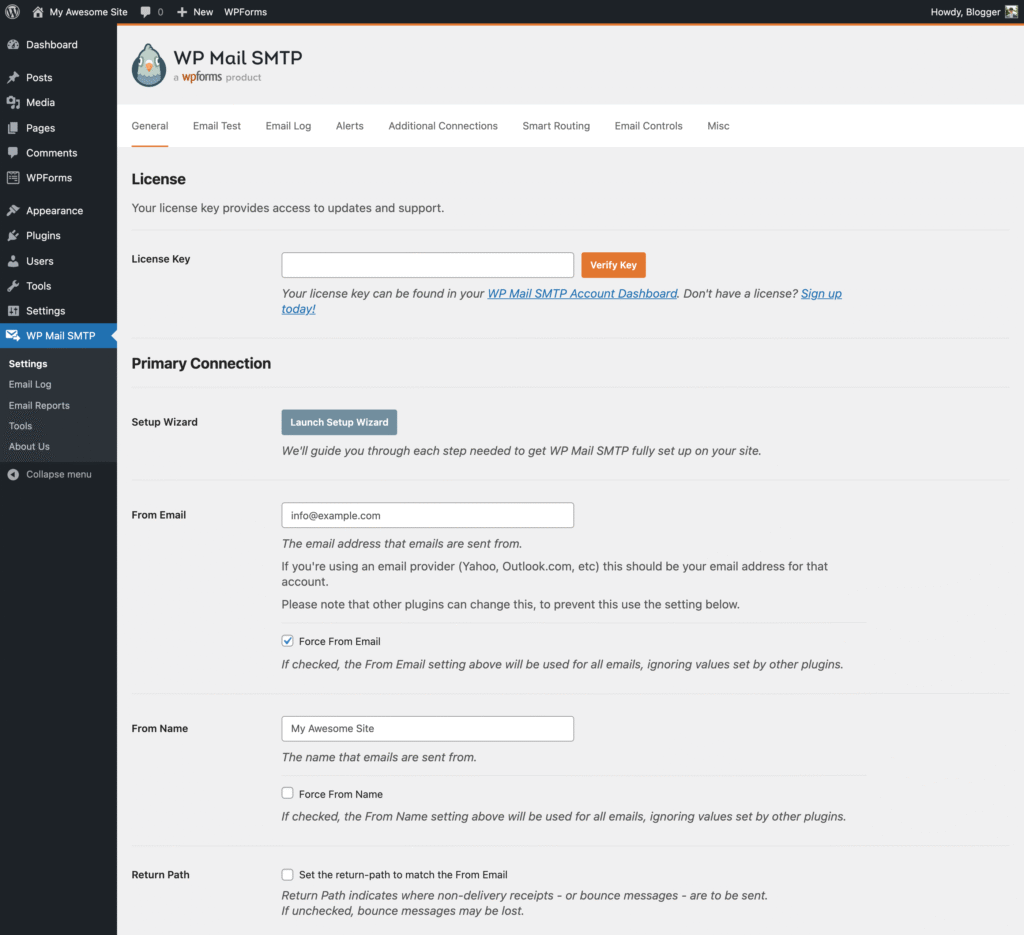
Step 4: Send a Test Email
Most SMTP plugins include a Test Email option.
Enter your personal email address
Send a test message
Check your inbox and spam folder
If the email arrives, your problem is fixed.
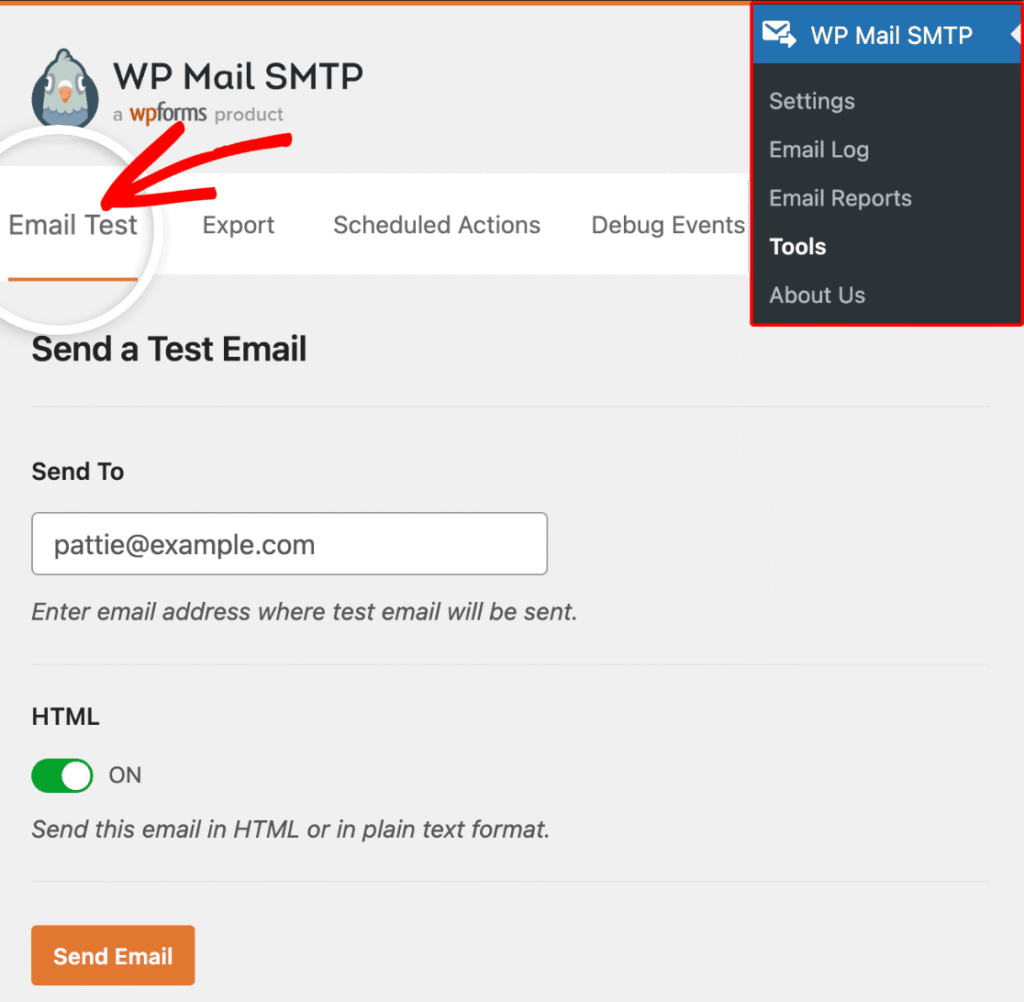
Step 5: Fix Contact Form Email Settings
If emails still don’t arrive from contact forms:
Open your form plugin (Contact Form 7, WPForms, etc.)
Check the “To Email Address”
Use a real email (preferably domain‑based)
Also, avoid sending emails to the same address used as the “From Email”.
Step 6: Check Spam Folder & Email Logs
Sometimes emails are sent but land in spam.
Good SMTP plugins include email logs, allowing you to:
See if WordPress sent the email
Identify delivery issues
Debug failed messages
Quick Checklist to prevent email issues!
✔ Always use SMTP
✔ Use a domain‑based email address
✔ Avoid free random emails as sender
✔ Test emails after plugin or theme updates
✔ Keep SMTP plugin updated
Final Thoughts
When WordPress is not sending emails, it’s rarely your fault. The default email system simply isn’t reliable enough for modern websites.
By setting up SMTP correctly, you’re not just fixing a bug – you’re making your site more professional, trustworthy, and user‑friendly.
Once configured, email issues usually never come back.
If you’re still facing problems after following this guide, feel free to contact us – we’re happy to help.
Related WordPress Issues (Recommended Reading)
If you’re facing multiple errors, these guides will help:
- WordPress Memory Exhausted Error: How to Increase PHP Memory Limit Safely?
- WordPress Critical Error: How to Fix “There Has Been a Critical Error on Your Website
- How to Fix 404 Error? 7 Easy steps.
- WordPress Site Stuck in Maintenance Mode? Here’s the Fix
These articles cover the main related wordpress errors and scenarios.